
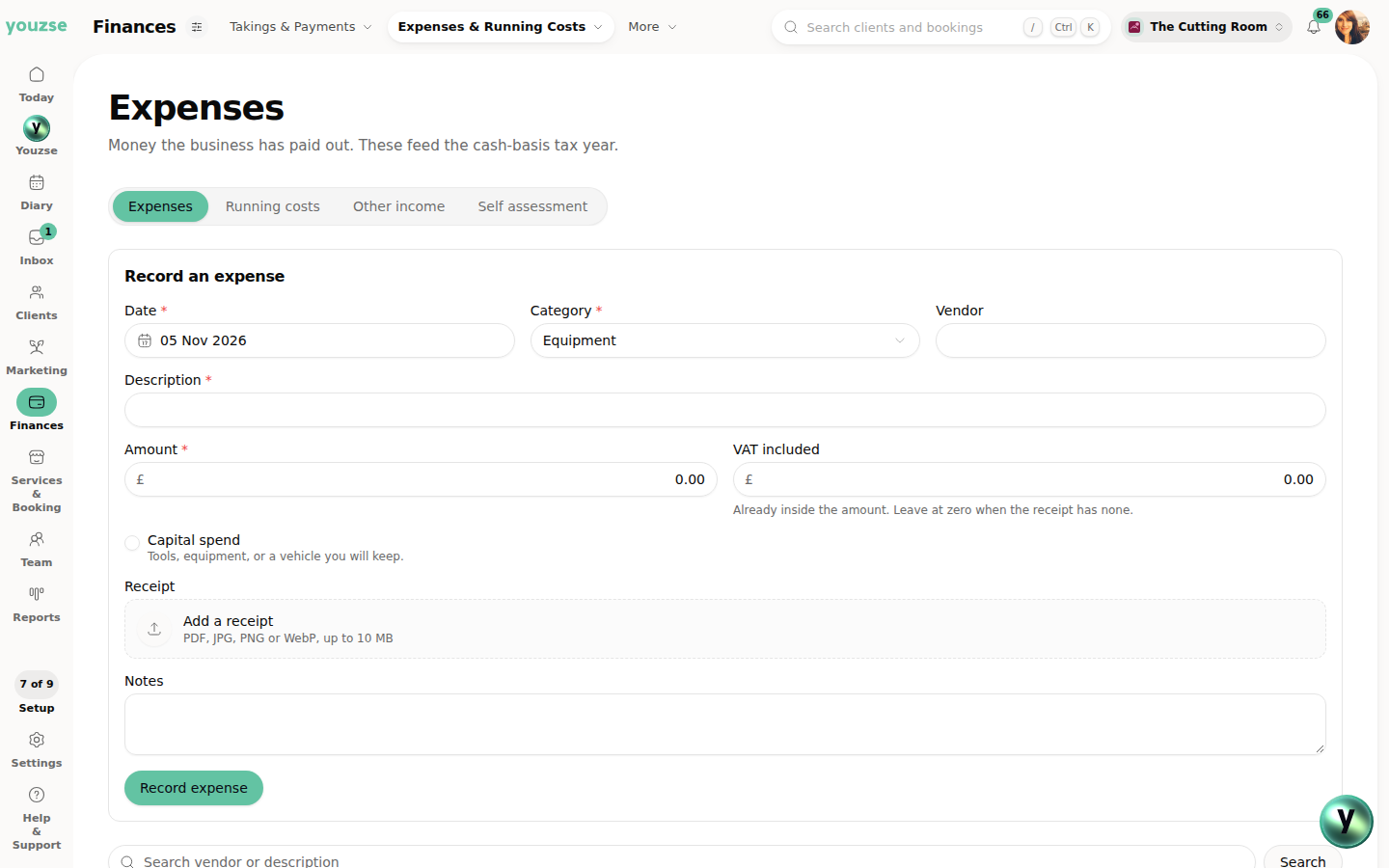
 Review the purchase details
Record what the business paid
The Cutting Room demo form keeps the category, supplier, amount and receipt together.
Keep the purchase, the category and the receipt together, ready when you need to check them.
Real screens from our demo businesses, The Cutting Room and FlowFix Plumbing. Running costs are shown separately from money already paid out.
Review the purchase detailsThe Cutting Room demo form keeps the category, supplier, amount and receipt together.
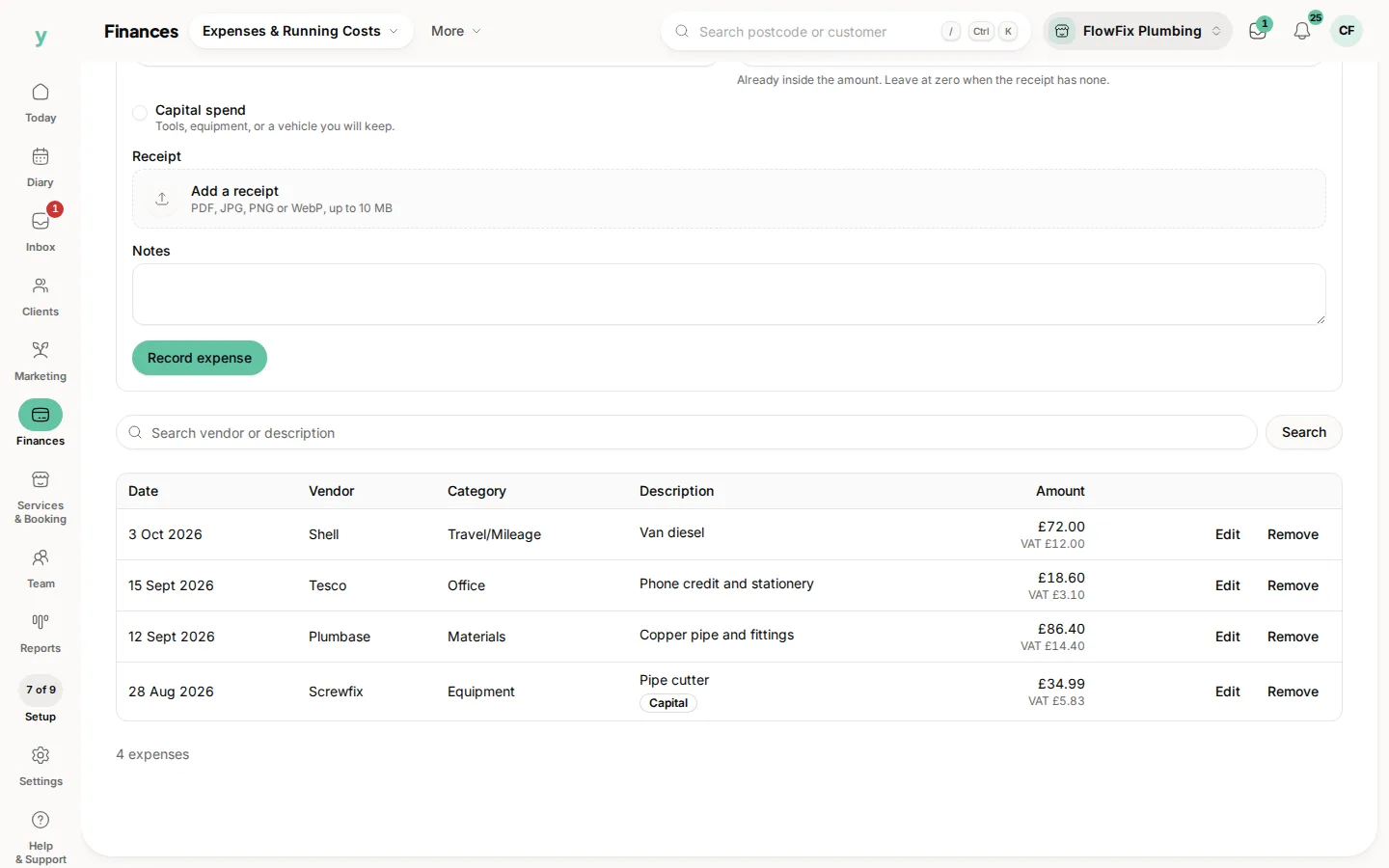 Search vendor or description
The FlowFix Plumbing demo list shows recorded purchases and the details behind them.
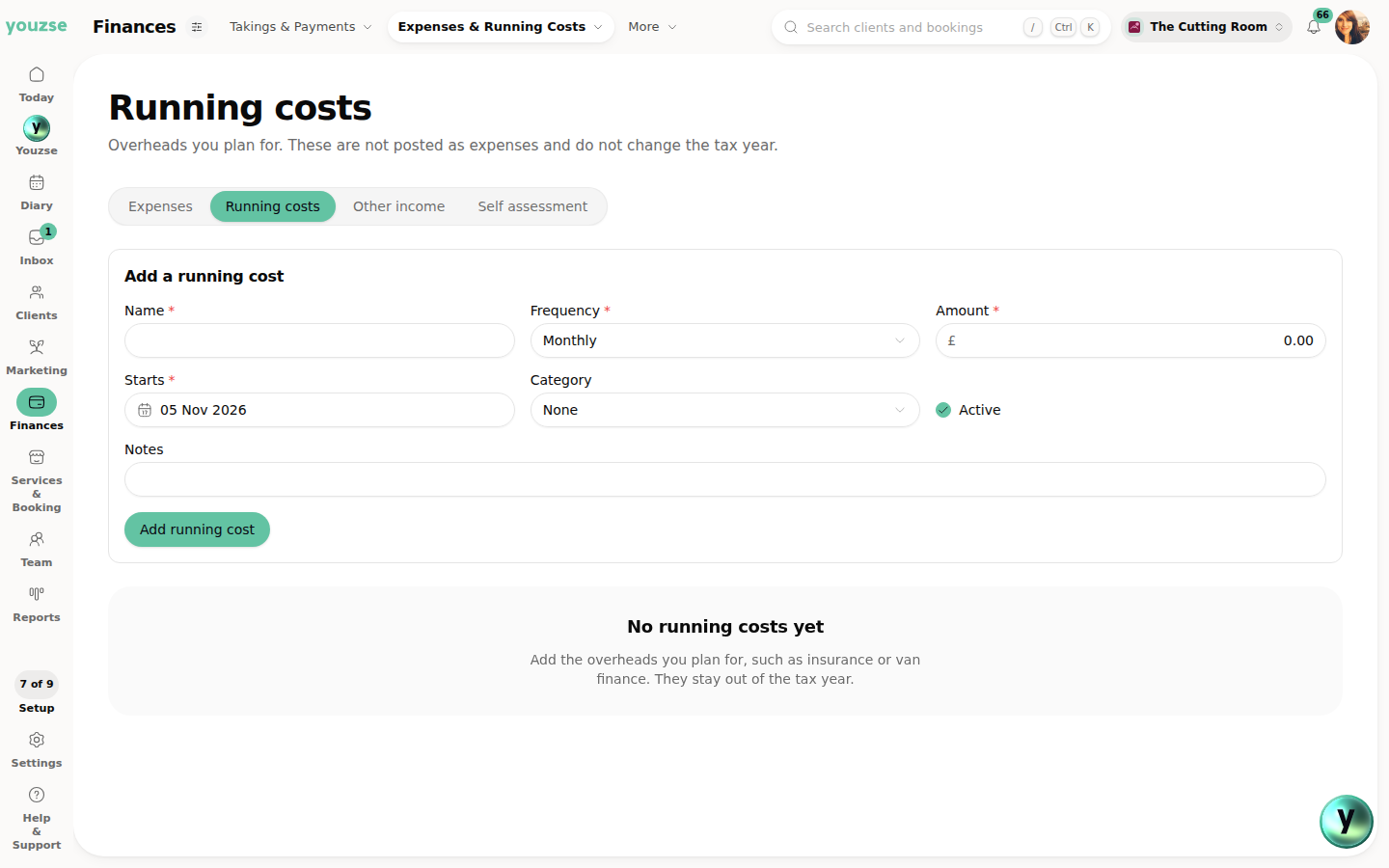 Plan the usual overheads
The running costs form explains that planned overheads do not post an expense.
Supplies, parts and everyday purchases deserve records as clear as the invoices you send. Youzse expense management software keeps the date, supplier, amount and category together with the receipt. Record money the business has paid out, add the context someone else would need and find the purchase again without working through a pile of separate documents. Expense management is available in all Youzse mobile apps too.
An expense record starts with the money paid out and what it was for. Enter the purchase date, a clear description, the amount and an expense category. Add the vendor when it helps identify the purchase. A supplier can appear on many records, so the description should explain this particular purchase rather than repeat a name.
For a salon, that might be colour supplies or cleaning materials. For a plumber, it might be fittings collected for the week ahead. For a garage, it could be workshop consumables. These examples describe record keeping, not automatic job costing or a decision about which costs are allowable for tax. The business remains responsible for the details entered.
Upload the supporting receipt with the record rather than leaving it to be matched later. Youzse accepts JPG, JPEG, PNG, WebP and PDF files up to 10 MB. The original stays attached to the expense so the figures and the evidence can be checked together. A readable photograph is more useful than a cropped total with no supplier or date.
Where the uploaded document provides readable text, the scanner suggests supported details for the form. Review the vendor, date, description, total and VAT against the receipt. Suggested fields can reduce repeated entry, but they still need a human check. If extraction is unavailable or unhelpful, enter the details manually and retain the attachment.
Categories give related purchases a consistent place in the expense records. Choose the category that describes the purchase and agree a shared approach with anyone else recording expenses. A small set of clear choices is easier to review than several categories that all mean almost the same thing.
The category filter helps narrow the list when you want to check a type of spending. For example, supplies and equipment may need separate review even when bought from the same vendor. Do not assume a category label determines the final accounting or tax treatment. It is part of the business record and should be checked with the appropriate advice when needed.
The expense form records an amount and a separate VAT figure. VAT here is already inside the amount, so it should not be added a second time. Check the supplier document and leave the VAT at zero when the receipt has none. If an extracted figure represents a subtotal or a different tax line, correct it before saving.
The form also includes a capital spend marker for purchases such as tools, equipment or a vehicle the business keeps. Mark the record thoughtfully and use notes to explain context where necessary. The presence of a checkbox is not a ruling about deductibility, allowances or the correct treatment of a particular purchase.
The expense list shows recorded purchases with their date, description, supplier, category and amounts. Search by vendor or description when a supplier calls or a colleague asks what a purchase was for. Filter by category to focus the list, then open the record and its supporting documents rather than relying on memory.
A useful description pays off here. Workshop supplies is clearer than miscellaneous, while an explanation of the specific materials is better again when several purchases look similar. Keep notes for the additional detail a colleague may need later. The aim is to make a record understandable after the original person has moved on to the next job.
An expense records money the business has paid out. The running costs area has a different purpose: keeping usual costs and their monthly equivalent visible. A planned cost such as an annual subscription can help you understand the shape of the business without pretending that every future payment has already happened.
Review those records separately. Adding a running cost does not pay a bill and recording an expense does not arrange a bank transfer. When checking a purchase, use the actual payment and supplier document as well as the record in Youzse. The distinction matters when a bill arrives on one date but the business pays it later.
The assistant can show a limited list of recent expenses to someone with permission to view them. That gives an owner a quick way to ask about recorded purchases while working in the same business workspace. A recent list is not a complete spending analysis, a bank reconciliation or an automatic answer to every accounting question.
Supported expense creation through the assistant is prepared for review and confirmation. Read the proposed description, supplier, date and amount before accepting it. The permission to manage expenses still applies. Confirming an expense record does not pay anyone, and asking the assistant a question does not grant access beyond the business permissions in place.
Viewing expenses and managing them are separate permissions. Review the role of the person recording purchases so they can do the job without assuming the entire team needs the same financial access. An employee handling bookings may have no reason to browse the expense records, while a manager doing the paperwork may need both permissions.
Check the result from the actual staff account. Owner access can hide missing permissions when testing a workflow. Agree who records purchases, who checks unclear receipts and who reviews categories. Software keeps the fields and attachment together, while a clear handover gives the team a consistent way to use them.
Start the trial with a few ordinary purchases. Record the date, amount and category, attach the original receipt and add a description you will recognise later. Include a receipt with VAT and another without it so you can check how both appear in the list. Review any text suggestions rather than accepting them simply because they are filled in.
Ask an authorised colleague to find one of those records using the vendor or description and explain what the purchase was for. Check whether the notes and attachment answer the likely follow up questions. That small exercise shows whether the way you record expenses will support a real handover at the end of a busy week.
Expense management sits alongside customers, bookings, quotes and invoices in the Youzse workspace. These records describe different parts of the business. An invoice shows what a customer owes you, a payment shows money received and an expense shows money paid out. Keeping the terms clear helps the team choose the right record for the task.
Use the current pricing page to review the setup for your business and check the expense workflow during the trial. Youzse keeps everyday business records available for review. Expense entry and VAT fields do not imply live accounting sync, direct HMRC submission or automatic approval of the figures you need for a return.
| Task | What to try | What to review |
|---|---|---|
| Record | Enter a purchase date, category, description and amount. | The saved entry matches the actual purchase. |
| Support | Attach the supplier receipt and add useful notes. | The document belongs to the expense and is readable. |
| Find | Search by vendor or description and filter by category. | A colleague can recognise the purchase without asking you. |
| Control | Review the expense view and manage permissions. | Each person has the access needed for their responsibilities. |
Review suggested details and keep the original with the purchase.
Give expense access to the people handling the records.
Keep everyday purchases alongside the rest of the business.
Review supported expense questions and proposed actions.
The limits and the detail, answered before you spend an afternoon testing for them.
Yes. Expense management and receipt upload are available in all Youzse mobile apps, with access based on your business setup and permissions.
We value your privacy
Cookies keep Youzse running, improve the platform and help deliver relevant content. Read our privacy policy and cookie policy.