
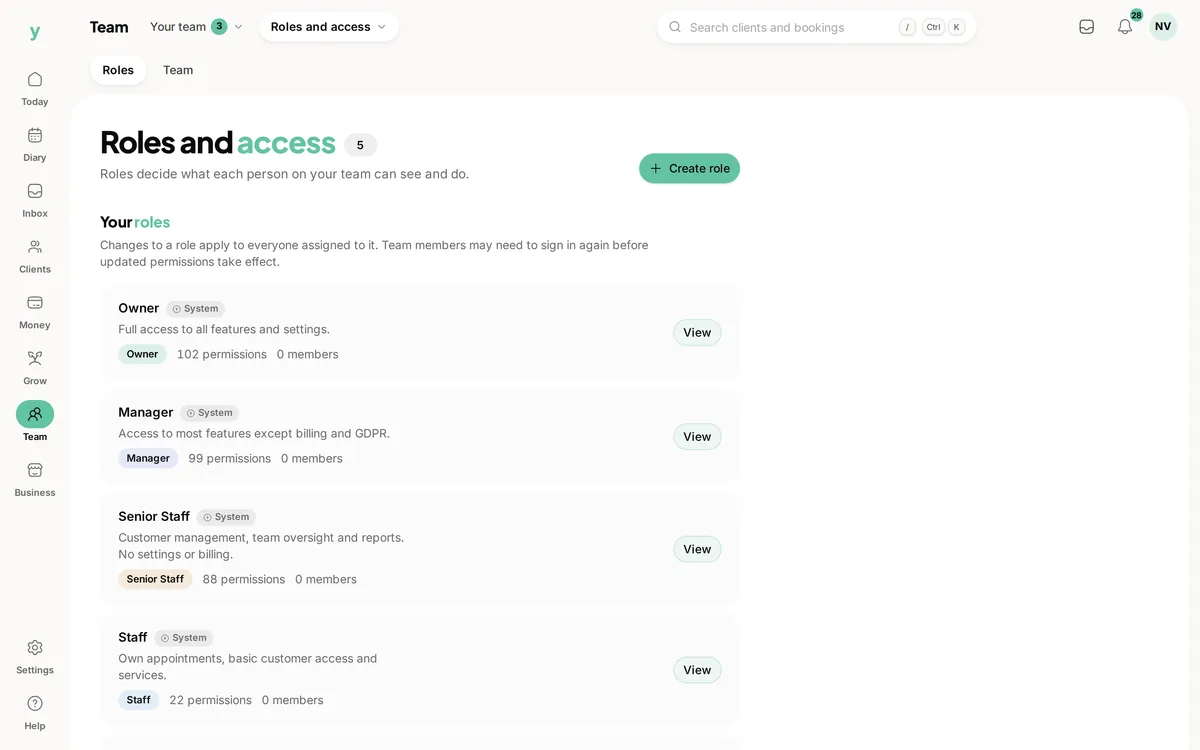
 Check who uses each role
Start with responsibilities
Review the existing roles and assigned people before changing access.
Give colleagues the access they need, with clear boundaries around the rest of the business.
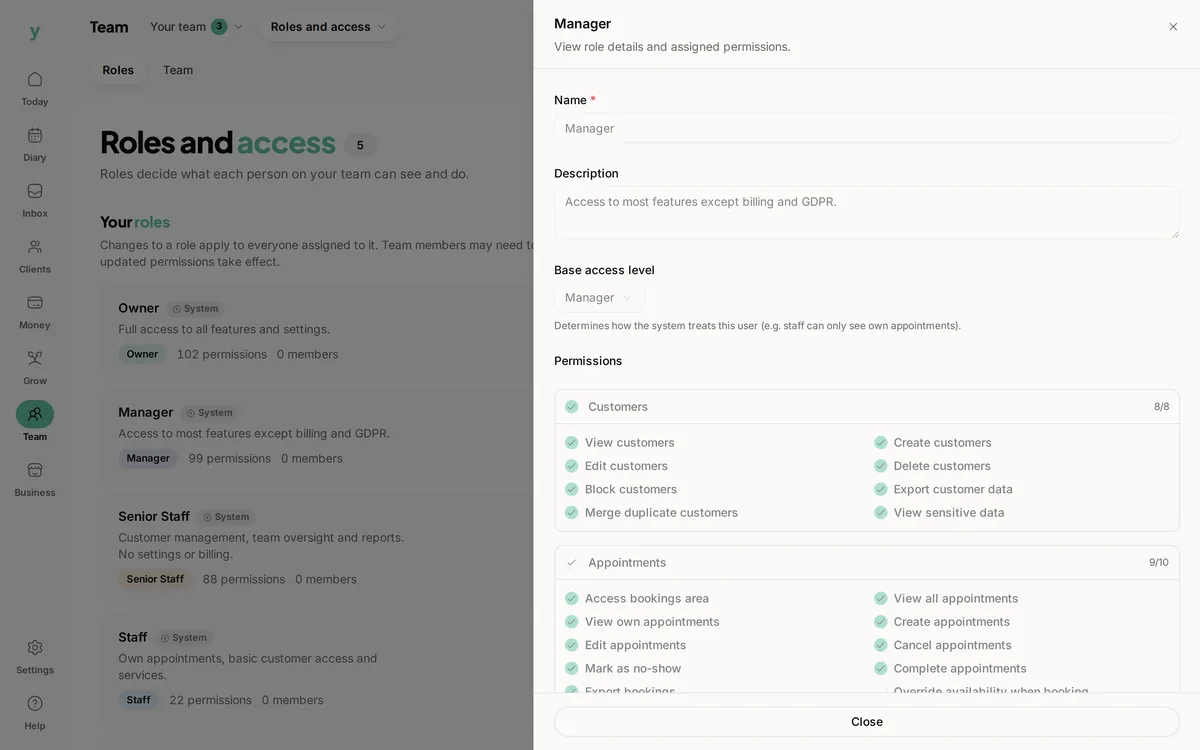
Real role and permission screens from The Cutting Room, our demo salon.
Check who uses each roleReview the existing roles and assigned people before changing access.
Review permissions by taskGrouped permissions make the individual capabilities available for review.
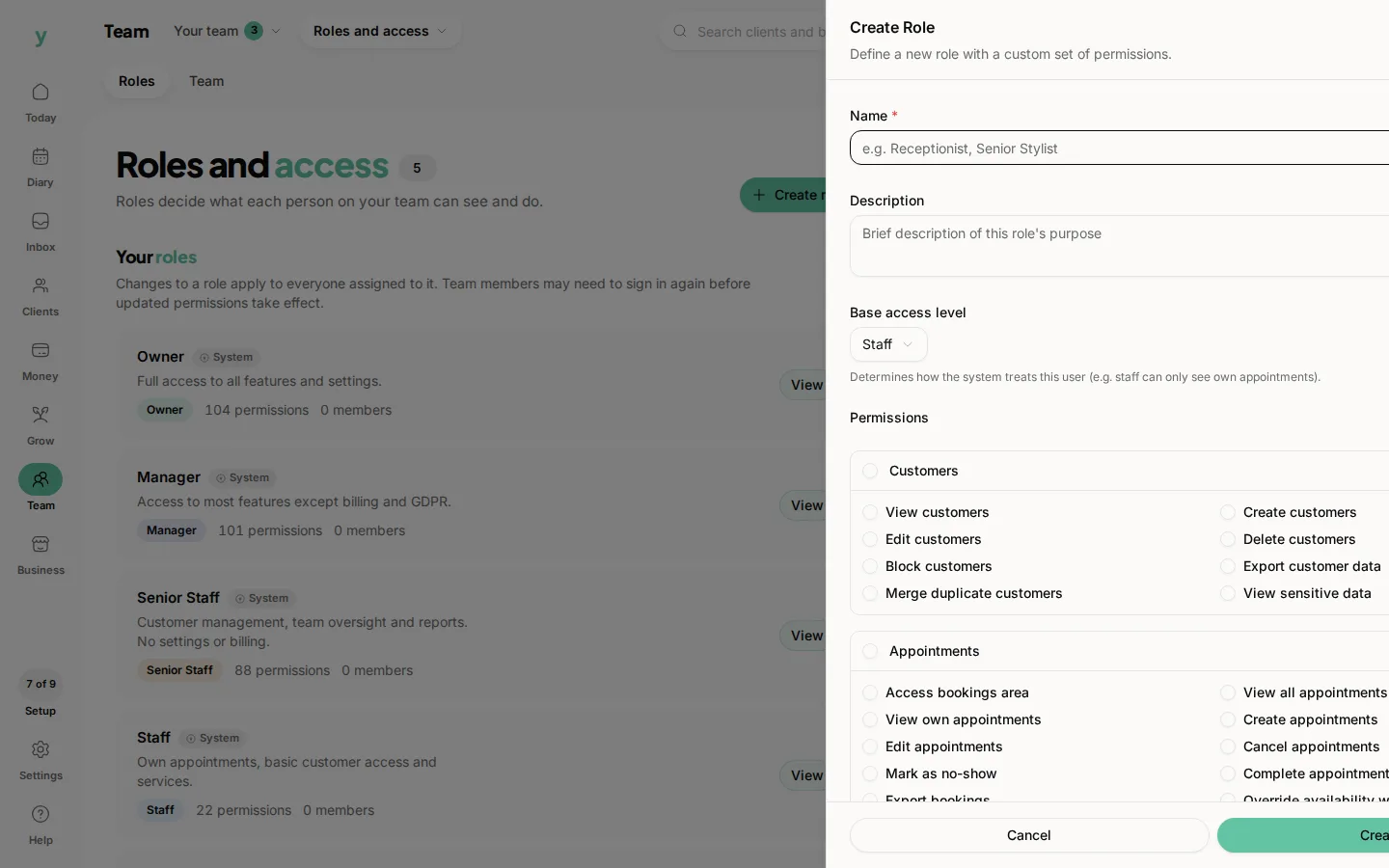 Name the responsibility clearly
Use a name, description and base role when the existing roles do not describe the job.
A colleague covering the diary needs a different view of the business from someone managing expenses or changing settings. Youzse staff roles and permissions let you define access around those responsibilities. Start with the available roles, review the individual permissions and check the result with the person who will use them. The team can work from shared records without assuming everyone needs the owner’s access. You can manage staff roles and permissions in all Youzse mobile apps too.
Write down the work each person actually handles. Booking appointments, updating customer details, managing expenses and changing business settings are different responsibilities. Starting with those tasks gives you a practical basis for deciding access instead of handing out a broad role because its name sounds close enough.
For example, a receptionist may need to manage bookings and find customer details. A colleague doing the books may need expense access. A senior member of a workshop may need to see assigned work without changing billing settings. These are examples to review against your own setup, not a promise that a role name automatically includes an exact list of permissions.
Youzse provides default role names including Owner, Manager, Senior Staff, Staff and Apprentice. Their available capabilities are checked against the product line and subscription setup. A role does not make an unavailable feature appear, and a default role should still be reviewed before it is used for a responsibility that involves sensitive records.
The role list shows the people assigned to each role and groups the available permissions for review. Look through the tasks that matter to your team rather than assuming Manager means unrestricted access. Default permissions differ across roles and the effective result can also depend on the business and the resource being accessed.
A custom role lets you give a recognisable name and description to a set of responsibilities. Choose the base role and review the permissions for the work it needs to support. A useful description explains who the role is for, so a later handover does not depend on the person who first created it remembering every choice.
For example, a business could define a role for the colleague handling reception and bookings. Review whether that person also needs expense management, customer exports or sensitive settings. Avoid copying the owner’s access simply to get past one missing permission. Check the particular task and update the appropriate permission instead.
Viewing a record, editing it and exporting information can be different capabilities. In the permissions screen, review the grouped choices against the task someone needs to complete. Permission names are more useful when tied to a real action, such as opening the expense list or managing an expense record, rather than treated as a checklist to switch on in full.
Expense viewing and expense management, for instance, are separate checks. The same principle applies across the areas that expose distinct permissions. A person who needs to read context does not always need to change it. Work through the relevant choices and confirm the actual result in the business workspace before relying on a role for a handover.
The effective permission can depend on the resource and ownership rules, not only whether a menu item is visible. Staff and Apprentice access can be scoped around ownership for supported resources. That means a test should include the particular booking or record the person is expected to work on, rather than stopping when the page opens.
Choose a few representative tasks: finding a booking, reviewing the customer information needed for it and completing the next permitted step. If the person cannot do one of them, review the specific permission and resource rules. If they can see more than intended, review the role before extending it to the rest of the team.
Billing settings, exports and business financial records deserve specific attention when reviewing a role. A colleague can be trusted to deliver excellent customer service without needing every administrative capability. Match access to their responsibilities and review sensitive choices with the same care as permissions needed for the daily diary.
The owner has broad access within the business product line, so the owner account is not a useful stand in for checking a staff experience. Use the actual staff account or the role assigned to that person when assessing the workflow. A visible screen in the owner’s session does not show what another member of the team will be allowed to do.
The Youzse AI assistant works with supported business tools and the access of the person using them. Asking in a sentence does not grant a colleague permission to read financial records or manage expenses. Read tools check the relevant access, and supported changes are proposals that still need review and confirmation.
For example, listing recent expenses requires expense viewing access and creating an expense requires expense management access. Confirming a proposed action does not override a missing permission. Keep these boundaries in mind when introducing the assistant to the team so that the convenience of asking a question is not confused with a different level of authority.
A role may be assigned to more than one colleague. Before changing its permissions, check the list of assigned people and consider each person’s responsibilities. An adjustment made for one task can affect other users of the same role. A separate custom role may describe a genuinely different job more clearly than expanding an existing one.
When responsibilities change, review the access as part of the handover. Someone moving from reception to a management role may need different capabilities, while someone giving up financial administration may no longer need them. Keep the role name, description and permissions consistent with the work the person now does.
Pick one everyday task and ask the colleague to complete it from their own account. Use a booking or another representative record and check both the information available and the actions they can take. This is more informative than asking whether the navigation looks right, because the real permission checks are attached to the work.
Then check one boundary you intentionally kept closed, such as an expense workflow the person does not handle. Explain who to ask when an action is unavailable rather than treating every restriction as a fault. A clear route for questions helps the team work comfortably within the access you have agreed.
During your trial, review the roles available for your product line and plan, then test the responsibilities your team will need. Check the current pricing page for team allowances. A permissions setting controls access to available tools; it does not increase the subscription’s user allowance or add tools from another product line.
Use the same exercise for the diary, customers, lead pipeline and expense records that matter to your business. Keep the setup understandable enough that another authorised colleague can review it later. Roles work best as a clear expression of who does what, with practical checks whenever the team or its responsibilities change.
| Task | What to try | What to review |
|---|---|---|
| Define | List the work a colleague needs to complete. | The role describes a real responsibility. |
| Configure | Review grouped view, manage and other permissions. | Sensitive access is chosen deliberately. |
| Test | Complete a representative task from the staff account. | The person can work with the appropriate resource. |
| Review | Check assigned people before changing a shared role. | The change makes sense for everyone using that role. |
Keep working hours separate from the access a person needs.
Review distinct permissions for viewing and managing expenses.
Keep owners and progress clear across the pipeline.
Supported tools respect the permissions of the person using them.
The limits and the detail, answered before you spend an afternoon testing for them.
Yes. Staff roles and permissions are available in all Youzse mobile apps. You still need the appropriate permission to manage staff access.
We value your privacy
Cookies keep Youzse running, improve the platform and help deliver relevant content. Read our privacy policy and cookie policy.