
You can invite as many of your team as you need and decide exactly what each person can reach. This keeps sensitive things like billing and customer data in the right hands.
Find your team invitations under Team, then Roles & Access, then Team and roles under Team, then Roles & Access.
Inviting someone
- 1Go to Team, then Roles & Access, then Team and send an invitation to their email.
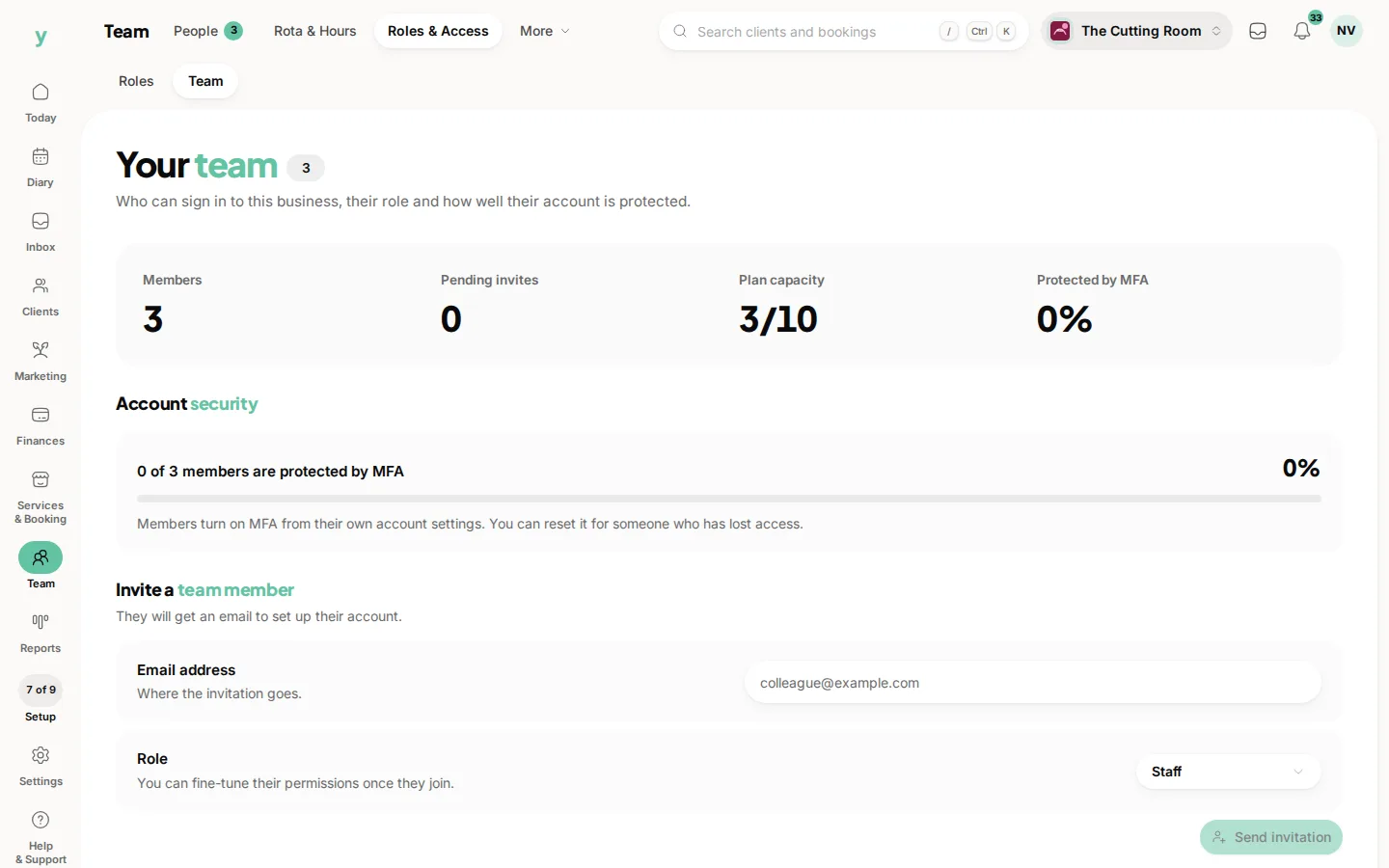
- 2Choose the role that fits what they do.
- 3They accept the invite, set a password and they are in.
You can resend or revoke an invitation at any time before it is accepted and remove a team member later if they leave.
The built-in roles
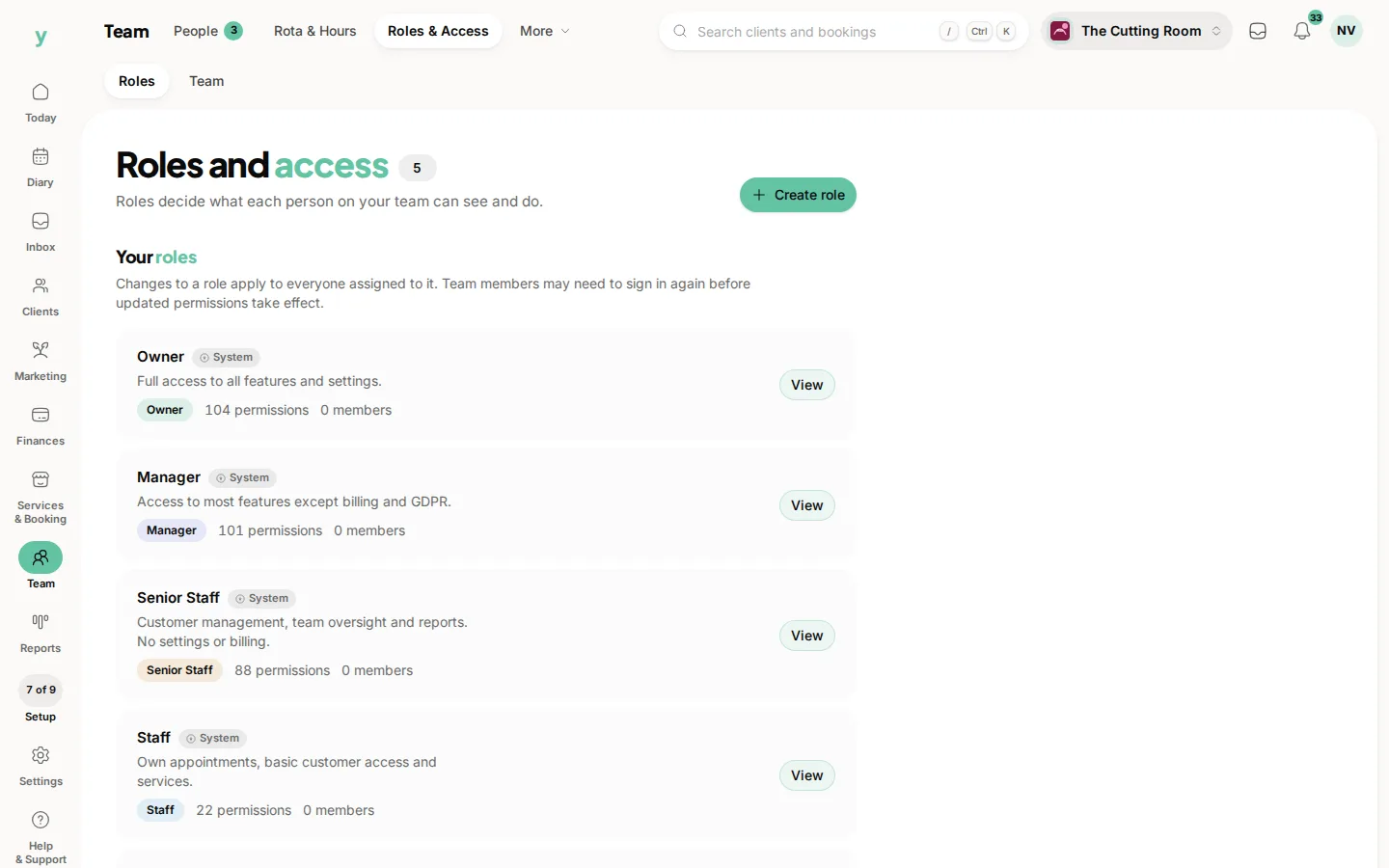
- Owner: Full access to all features and settings.
- Manager: Access to most features except billing and GDPR.
- Senior Staff: Customer management, team oversight and reports. No settings or billing.
- Staff: Their own appointments, basic customer access and services.
- Apprentice: View-only access to their own schedule and assigned appointments.
Custom roles
If the built-in roles do not fit, create your own. Give it a name and tick exactly the permissions it should have, grouped by area such as Customers, Appointments, Invoices, Payments, Staff and Settings. Permissions you do not have on your plan or product line will not appear, so you only see what is relevant to your business.
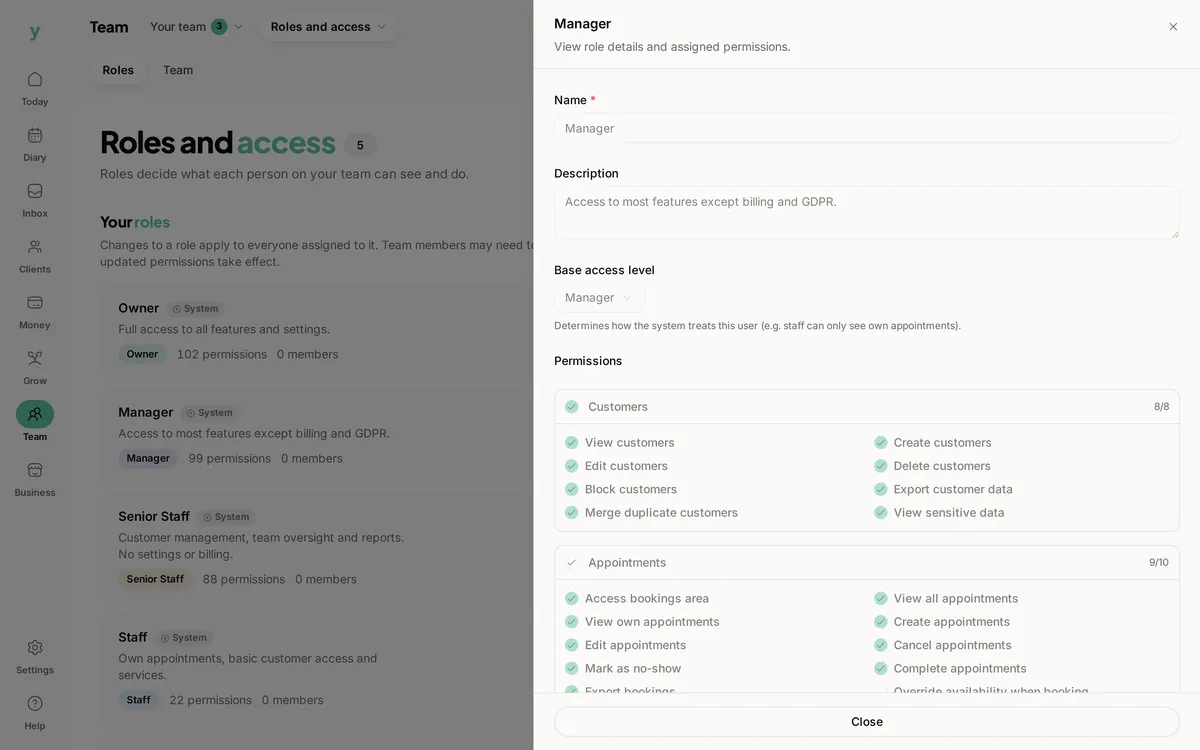
Built-in roles cannot be edited or deleted. If you delete a custom role, anyone using it falls back to their default permissions automatically.
Changing someone's permissions takes effect the next time they act, so there is no need to ask them to log out.
Common questions
Should everybody have their own login?
Yes, always. A shared login means you cannot tell who did what and one person leaving forces everybody to change their password.
Can one person have two roles?
Each person has one role. Where somebody does two jobs, create a role covering both.
Why can a colleague not see a page?
Their role does not include that permission or the feature is not part of your plan.