
Adding your team lets customers book the right person and gives each member their own diary. Even if it is just you, it is worth adding yourself as a team member so bookings have somewhere to land.
Where to find it
Go to Team, then People to see everyone and add someone new.
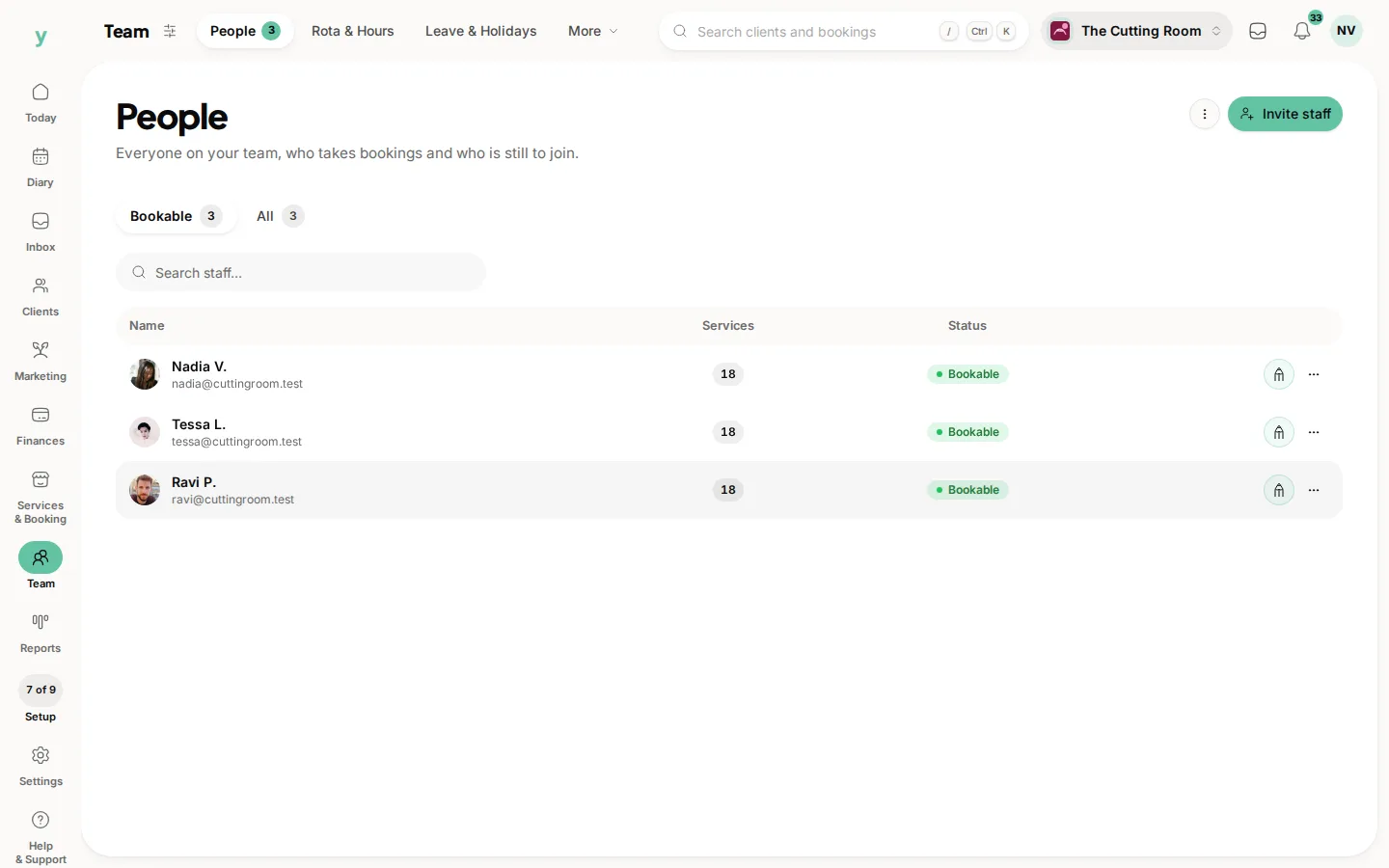
For each person you can set
- Their name and how it appears to customers
- Which services or jobs they offer
- Their working hours at each location
- Their own working diary in the calendar
Inviting them to log in
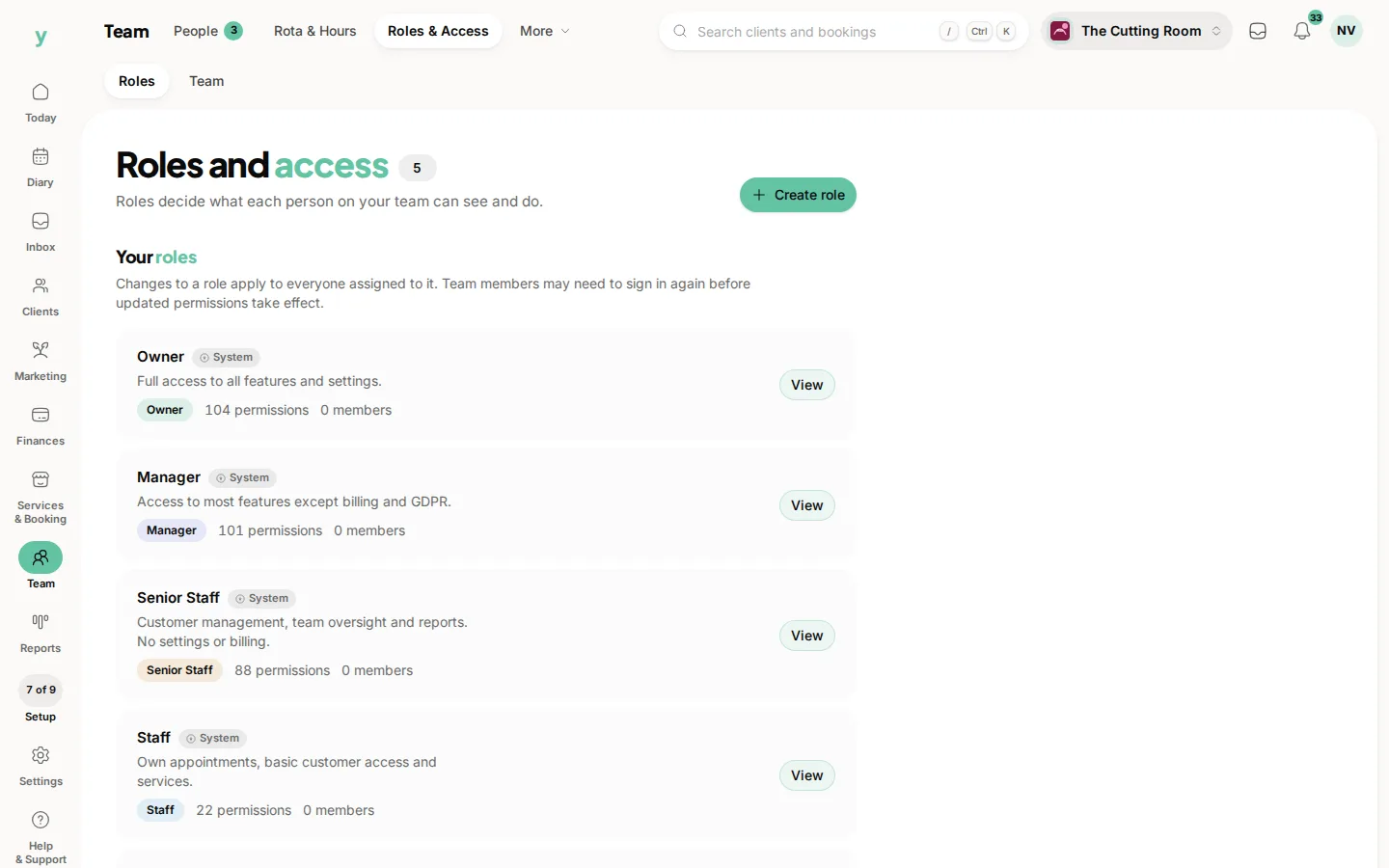
If you want a team member to use Youzse themselves, send them an invitation from Team, then People. They will get an email to set a password and sign in. You control what each person can see and do, so front-of-house staff and managers can have different access.
Setting working hours
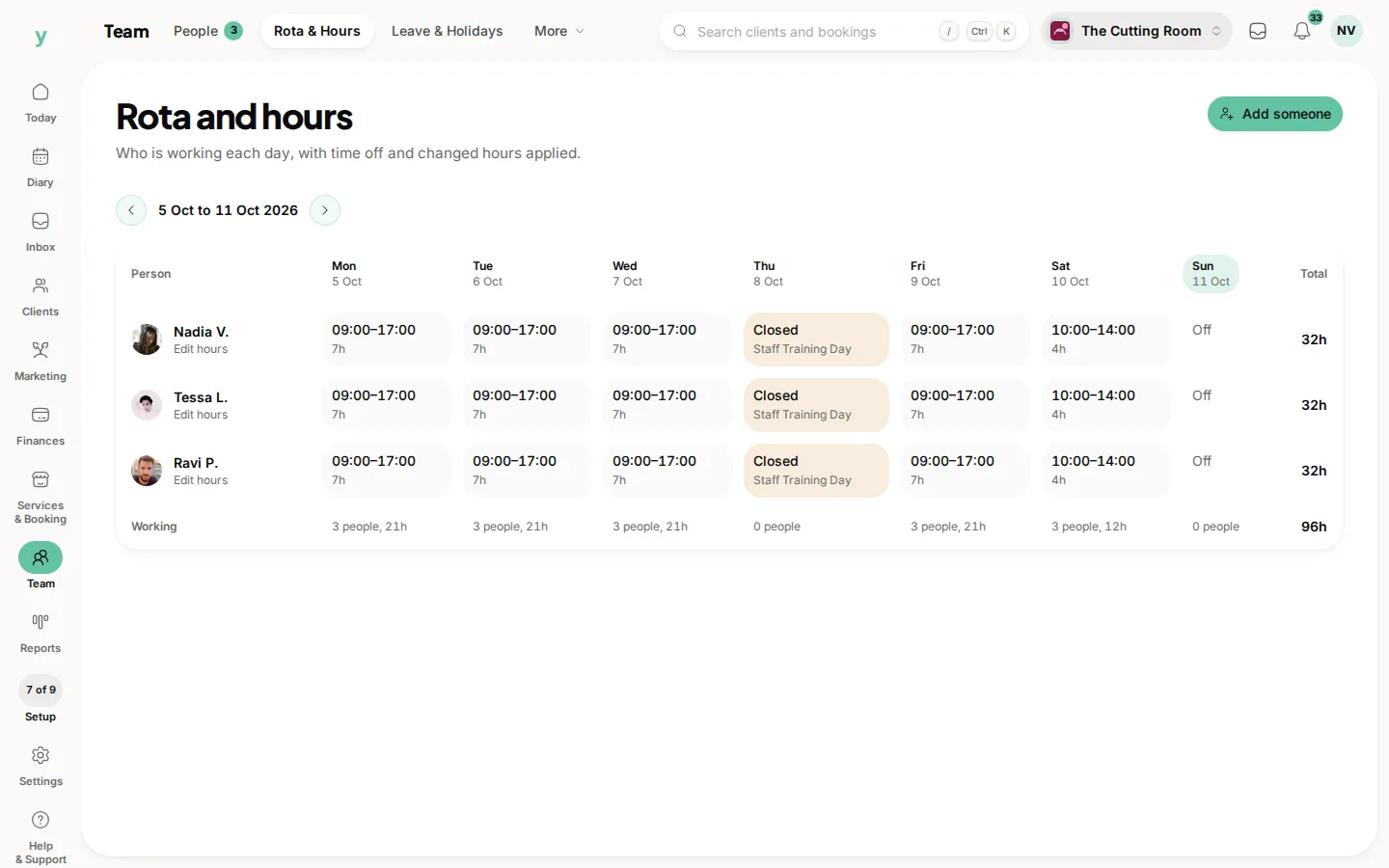
Each person has their own hours per location, set from their staff record. These hours decide when customers can book them, on top of your overall opening hours. There is a separate article on working hours and availability that covers this in detail.
Keeping it tidy
You can reorder your team so the right people show first. You can hide anyone who has left. If someone only does certain jobs, set that on their record so they are never offered for work they do not do.
With your team and services in place, your booking page is nearly ready for customers.
Common questions
Do staff set their own password?
Yes. They are invited by email and choose their own. Passwords are never imported or set by you.
What if the invitation does not arrive?
Check the email address, then their spam folder, then resend it from their staff record.
Can I add somebody without giving them access?
You can hold a staff record for the diary. They cannot sign in until an email address is added.