
Plenty of Youzse is set once for the whole business. That is the owner's job. A useful amount of it is yours alone and nobody else is affected when you change it.
This is the list of what you can set for yourself.
Your dashboard on the web
Open your dashboard and click Edit layout. Choose your widgets, drag them where you want them and drag a corner to resize. Click Done and it is saved to your account, so it follows you to any computer you log in on.
If your business has a team default, you started from it. The moment you arrange your own, yours takes over and later changes to the team default leave you alone.
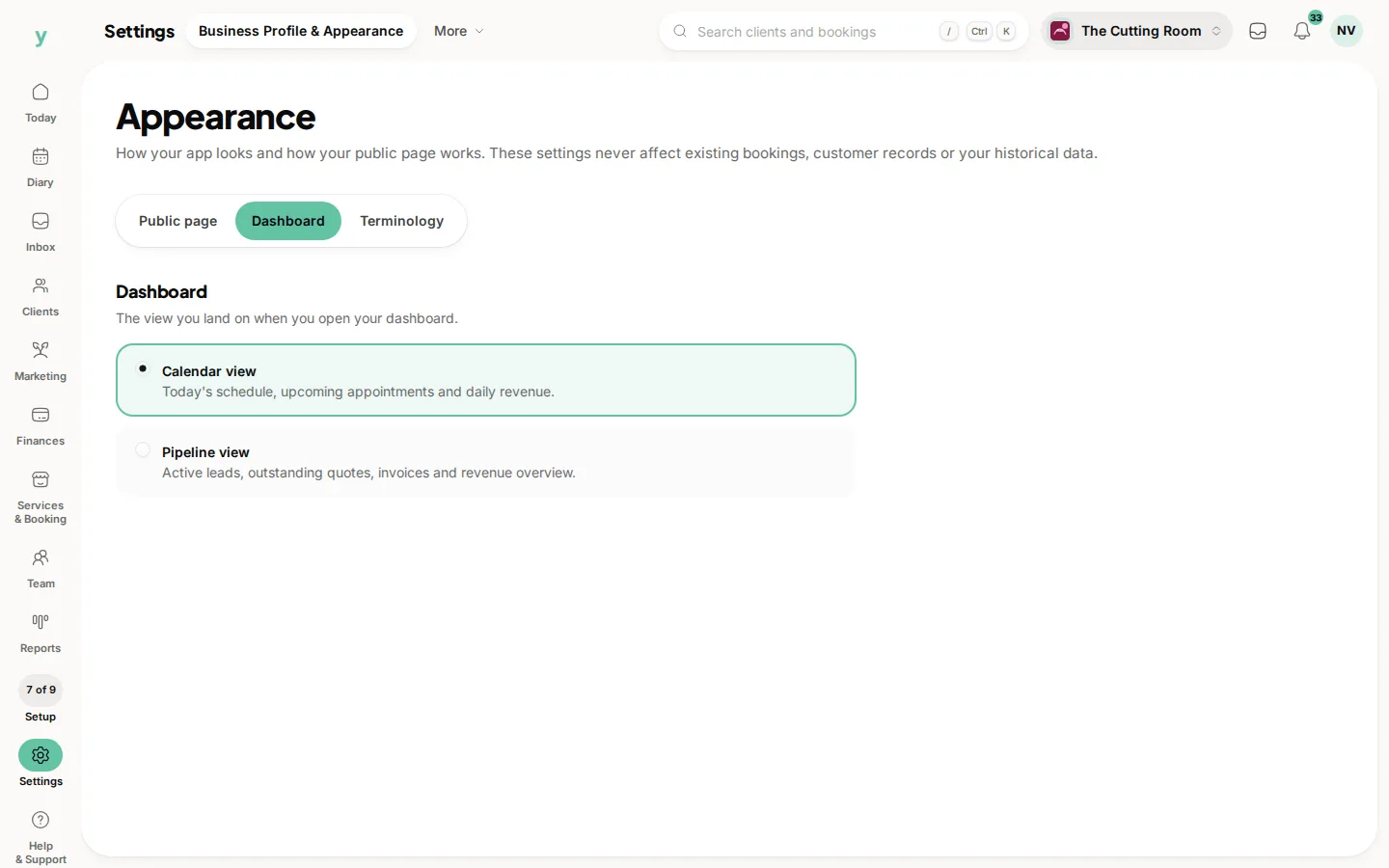
Your home screen on the app
Go to More, then App Customisation, then Dashboard. This is a separate list from your web dashboard, so a phone screen shows the few things worth glancing at rather than a shrunken version of your desk setup.
Your tab bar on the app
Go to More, then App Customisation, then Tab Bar. Three slots sit between Dashboard and More. Put the things you tap all day in them and reach the rest from More. This one is saved on your own device, so your phone and a colleague's can be set up completely differently.
Your theme and language
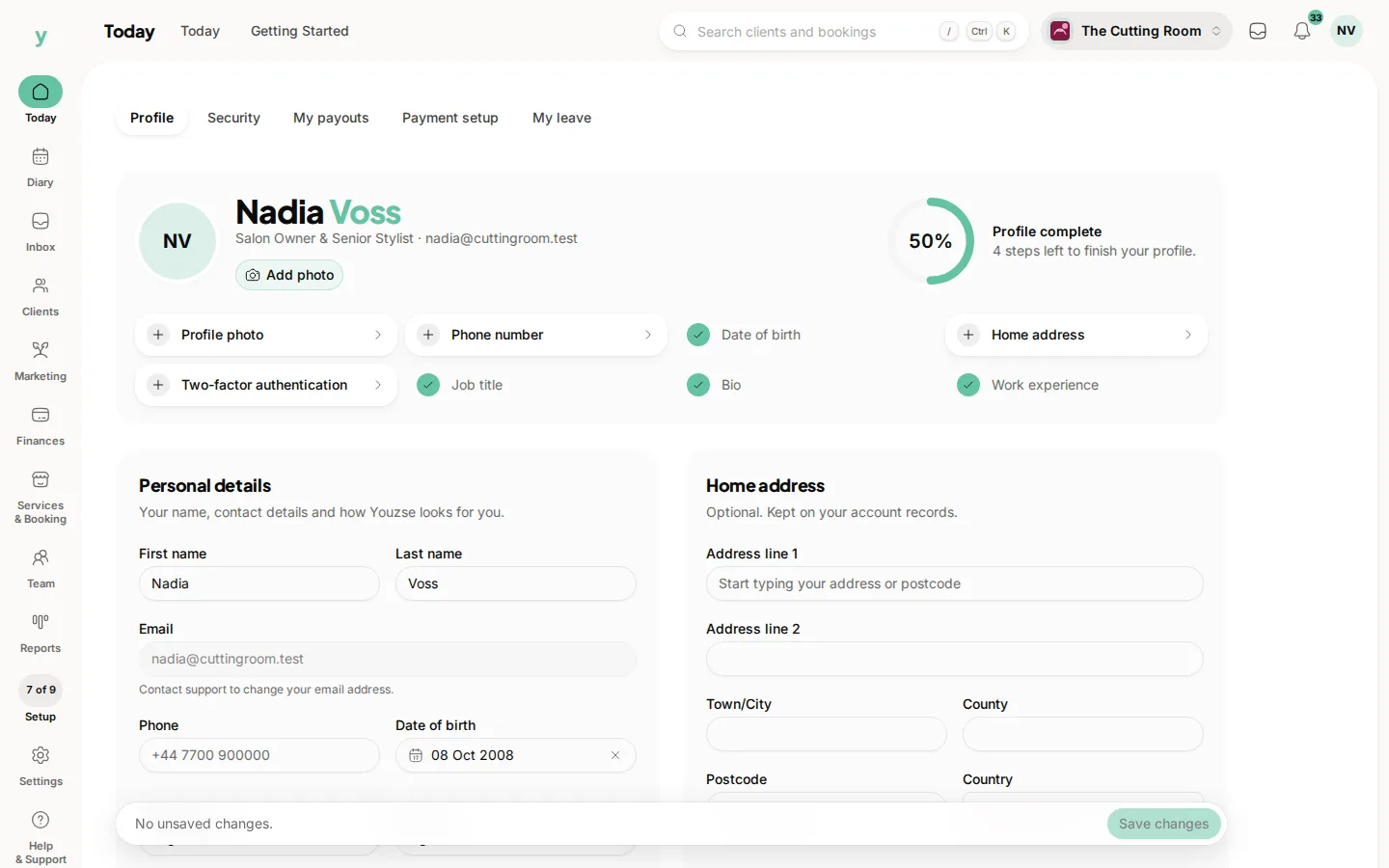
Open the account menu, your picture or initials at the top right, then My account. Alongside your contact details you can set your theme to light, dark or follow your device and your language and formats to British or American English. The same account menu has a quick switch between light and dark mode.
On the app, go to More, then App Customisation, then Appearance for the same theme choice on that device.
Your profile and how you appear
The same My account page holds your name, phone, address and photo, plus your display name, job title and short bio. If your business shows its team on its public page, that is what customers read, so it is worth writing properly.
Your login and your phone
Under your profile you will find security and active sessions, where you can change your password, set up two factor authentication and sign out any device you no longer use.
On the app, go to More, then Security. As well as the same options there is App Lock, which asks for Face ID, Touch ID or your device PIN before the app opens and which can lock again after a period of inactivity. Worth switching on if you leave a phone or tablet on a counter.
Your notifications
The bell in the top bar keeps your alerts. On the app, notifications arrive as push messages once you allow them on that device.
On the app
Everything personal sits in two places. More, then App Customisation holds your home screen, your tab bar and your theme. More, then My Account holds your details and More, then Security holds your app lock, your password and your sessions.
What is not yours to change
The menu counts, the wording, the documents and the features that are switched on are set for the whole business, so one person tidying up would rearrange everybody's day. Those sit behind the Edit settings permission, which owners and managers have. If you need one of them changed, ask.
Common questions
Will my dashboard changes affect anyone else?
No. Unless you are an owner deliberately saving a team default, everything on this page is yours alone.
Does my setup follow me to a new phone or computer?
Your dashboard, your app home screen, your profile, your theme and your language are saved to your account and follow you. Your app tab bar and your app lock are saved on the device, so a new phone starts fresh.
Why is my colleague's app showing different tabs?
Because the tab bar is a personal choice on each device. There is nothing to fix.
Can I change what customers see about me?
You can write your own display name, job title and bio, which is what appears if your business lists its team publicly. Whether the team is shown at all is a business setting.
I cannot find My account.
On the web, open the account menu with your picture or initials at the top right. On the app, open More. It is separate from Settings, which holds the business wide options.