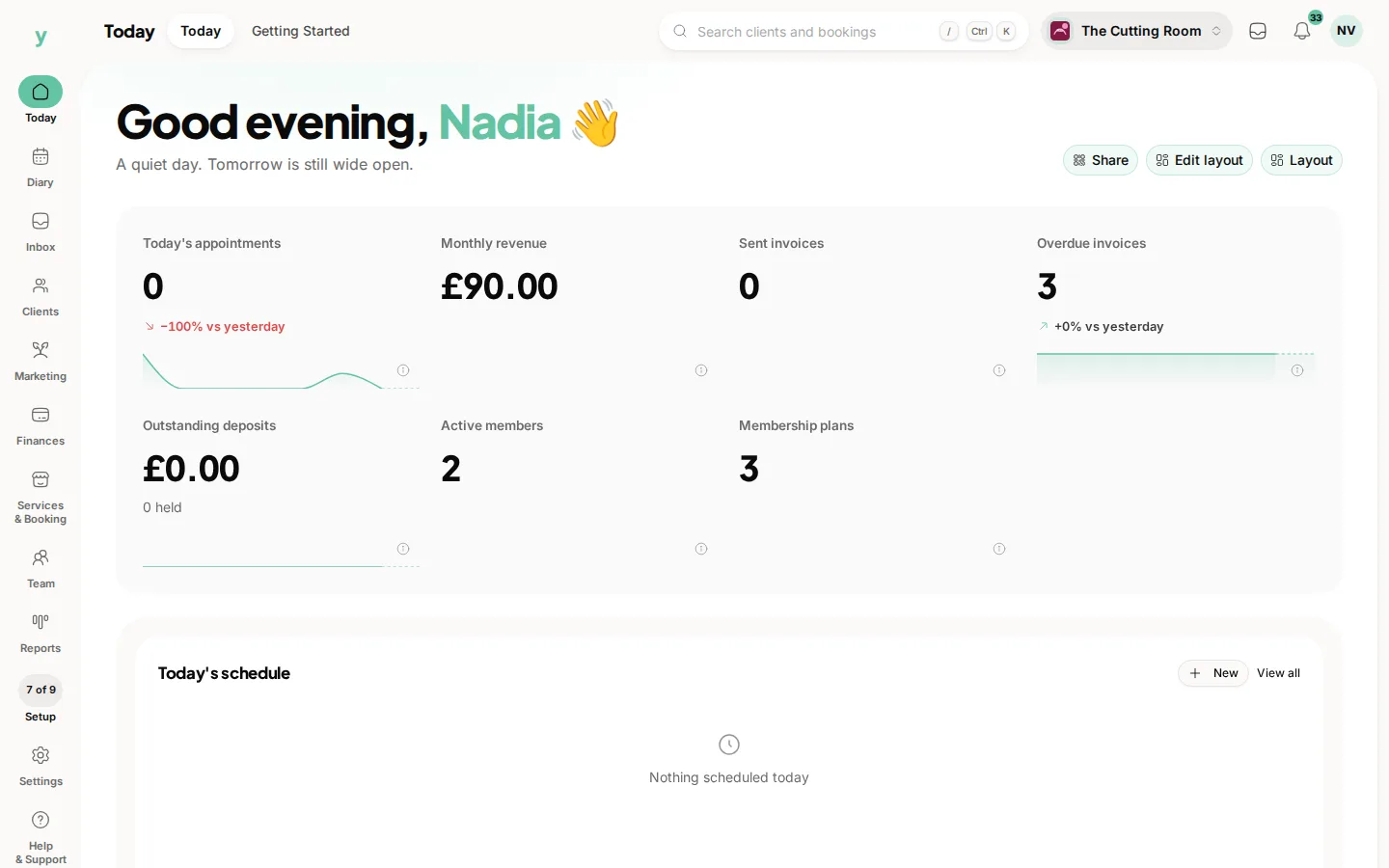
Your dashboard is the first thing you see each morning, so it should show the things you actually act on. Every widget on it can be moved, resized, removed or added.
On the web
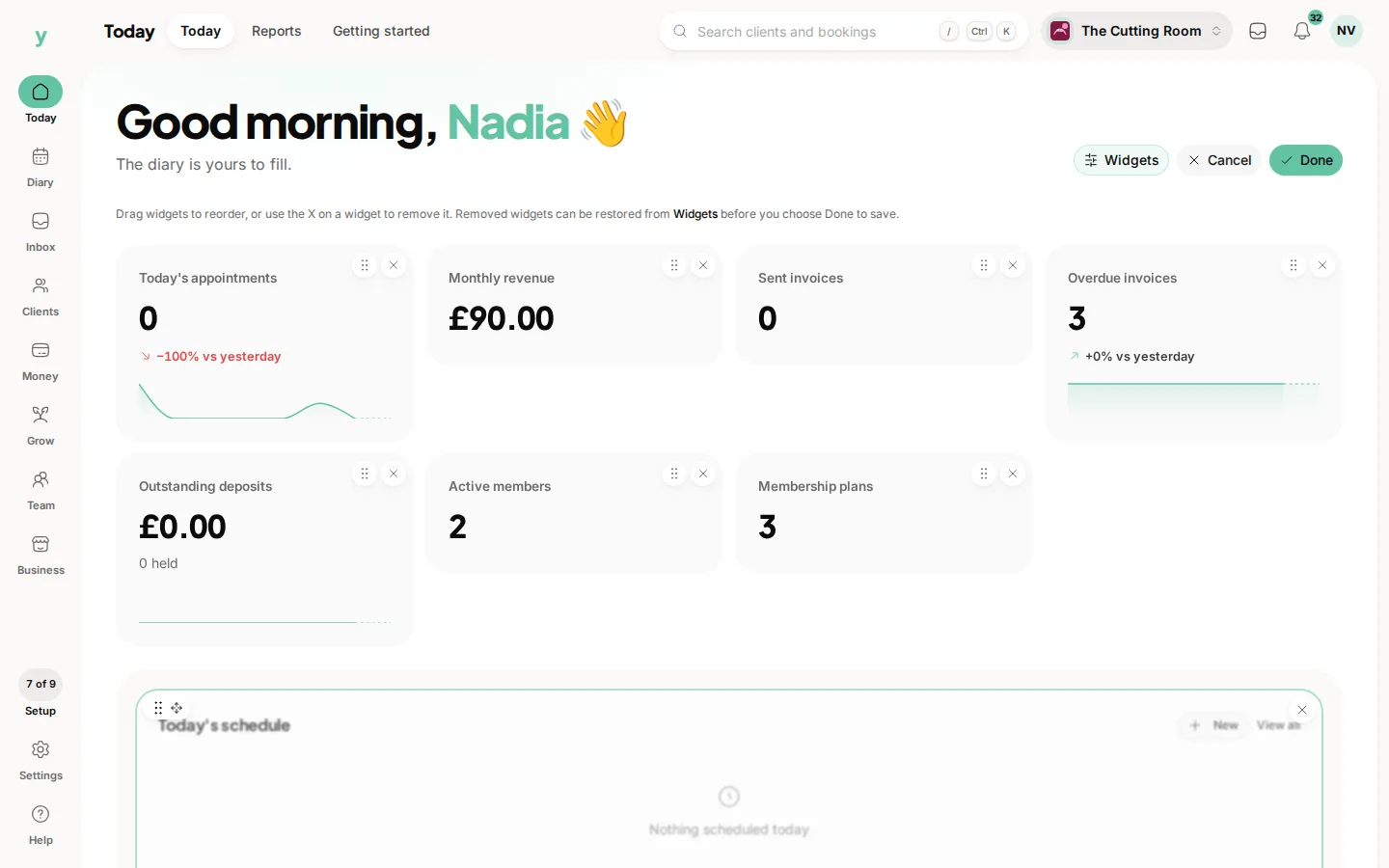
- 1Open your dashboard and click Edit layout.
- 2Drag a widget by its body to move it or drag its bottom corner to resize it.
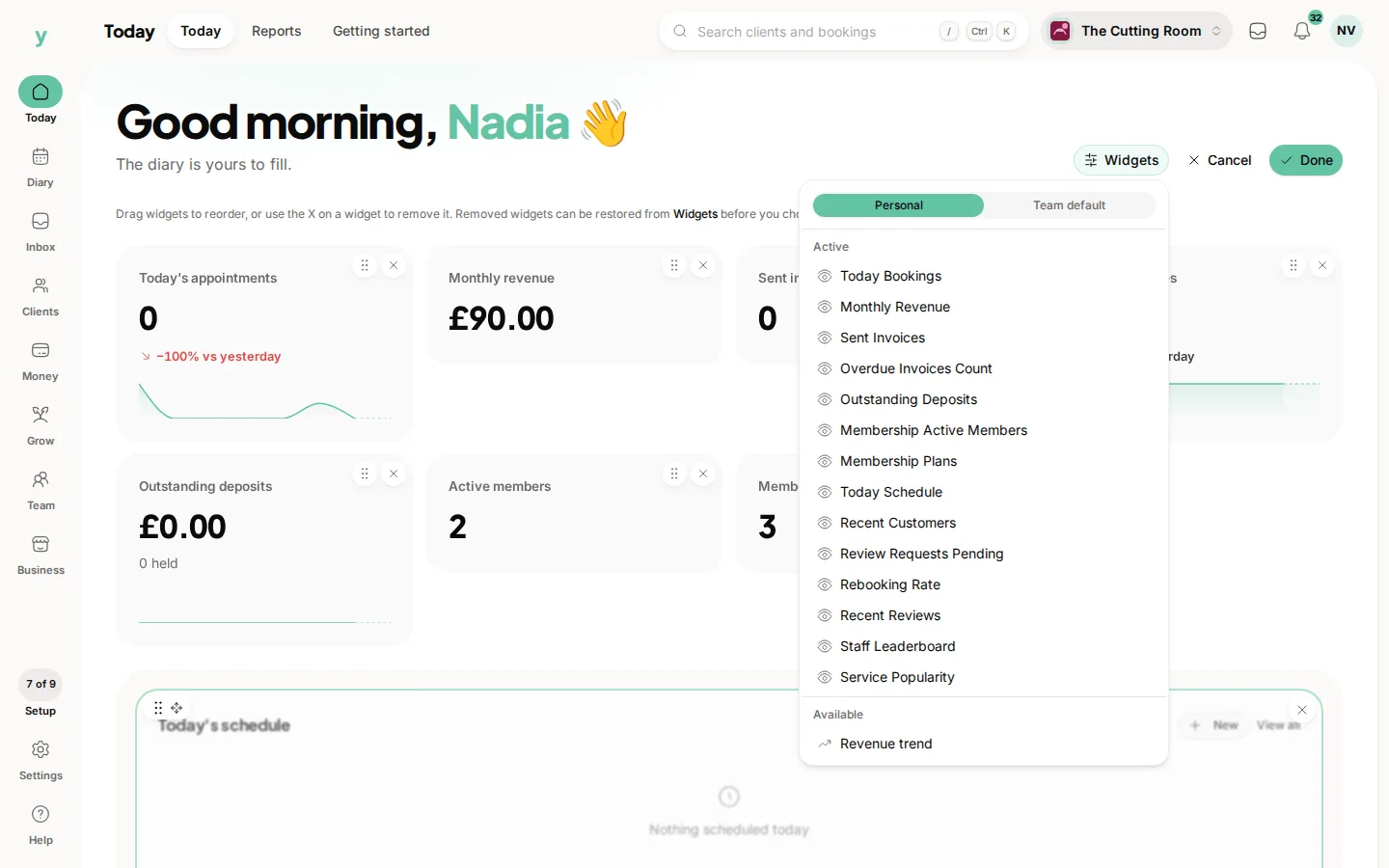
- 3Use the Widgets menu to switch widgets on and off or to add ones you are not using yet.
- 4Click Done to save or Cancel to walk away from the changes.
The Widgets menu is grouped so you can see what is on offer
- Active: what is on your dashboard now. Click one to hide it.
- Available: everything else you can add. Click one to add it.
- Locked: widgets that come with a higher plan. The badge tells you which one.
- Reset to default: puts the dashboard back to the standard arrangement for your type of business.
Personal or team default
Owners see a Personal and Team default switch at the top of the Widgets menu.
Personal is your own dashboard. Nobody else sees it and nobody else is affected by it.
Team default is the dashboard everyone starts with. It only changes what a colleague sees if they have not already arranged their own, so setting a sensible team default is safe. Anyone who has customised theirs keeps it.
Positions and sizes are personal. When you set a team default you are choosing the list of widgets, not the exact grid.
What is on offer and why
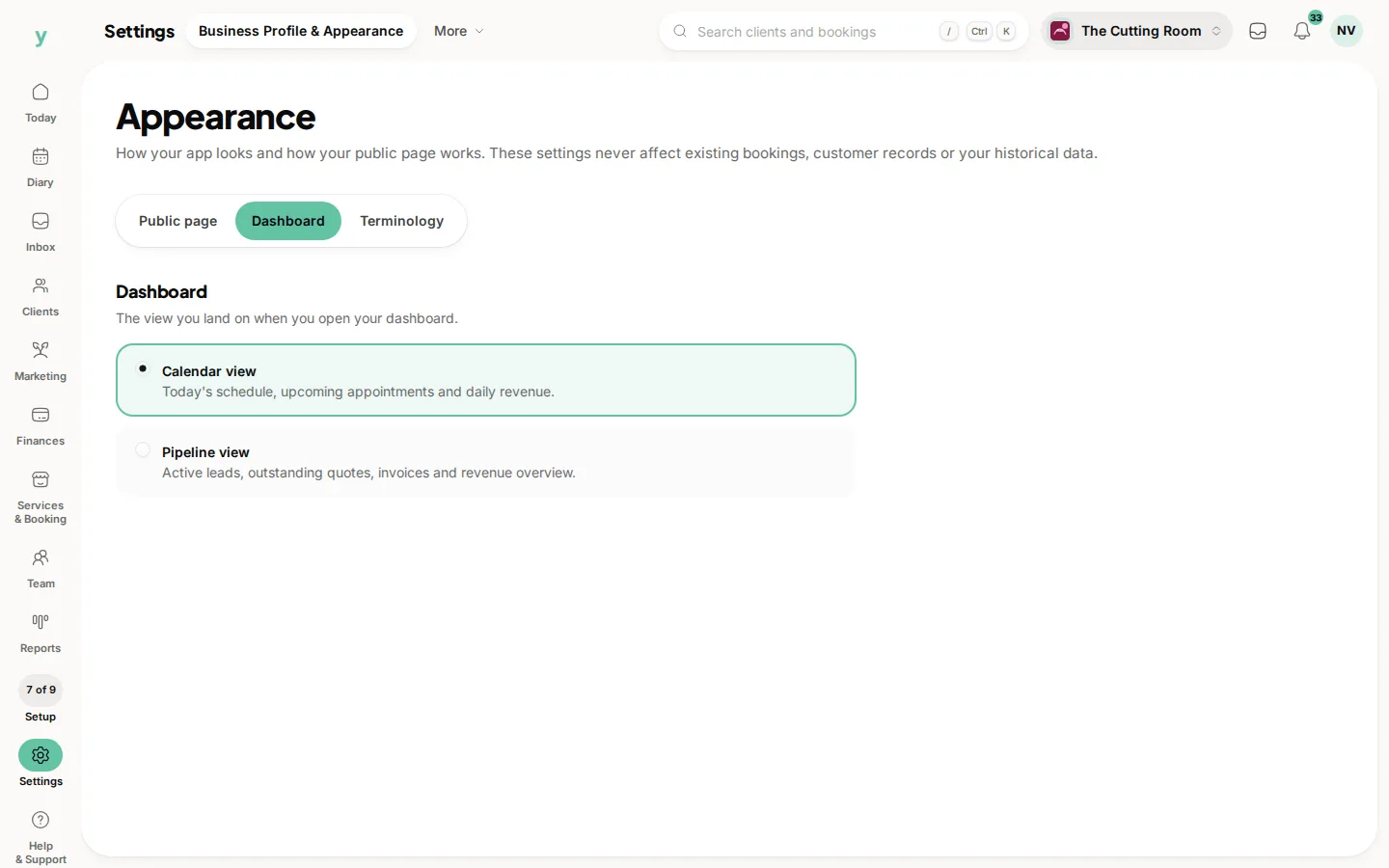
The widgets you can choose from depend on two things. Your type of business, so a garage is not offered widgets built for a salon. And your dashboard layout, since the calendar, pipeline and workshop views each carry their own set. Switching layout does not throw away the widgets you picked for the other one, they come back if you switch back.
On the app
Go to More, then App Customisation, then Dashboard. Choose the widgets you want on your phone home screen and tap Save my dashboard. Owners on a team plan can switch to the team default and tap Save team default.
Your phone widgets are chosen separately from your web dashboard on purpose. A phone screen fits about four useful things and a desk monitor fits a dozen, so tying them together made both worse.
Common questions
Will my team see my dashboard changes?
Only if you are an owner and you save a team default. Anything you save as Personal is yours alone.
Why can I not add a widget I have seen elsewhere?
It is either not offered for your type of business, it belongs to the other dashboard layout or it is on a higher plan. Locked widgets are listed at the bottom of the Widgets menu with the plan that includes them.
I have made a mess of it. Can I start again?
Yes. Edit layout, then Widgets, then Reset to default. Resetting currently needs the Edit settings permission, so if nothing happens when you click it, ask an owner to reset it for you.
Does the app show the same dashboard as the web?
No. That is deliberate. Widgets are chosen separately for the phone so each screen shows what suits it. Both are saved to your account, so a new phone picks up your choices.
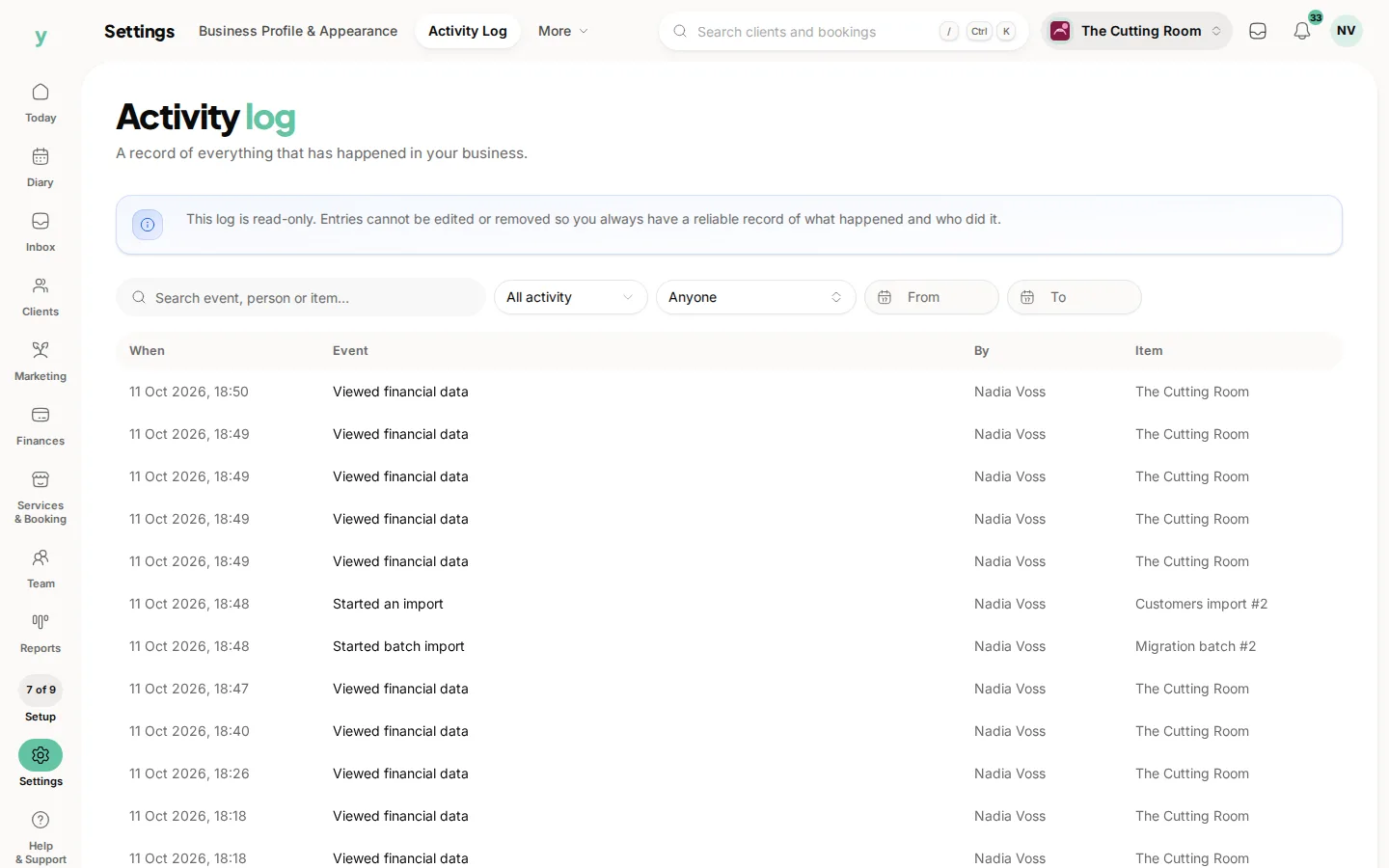
Is a change to the team default recorded anywhere?
Yes. Dashboard changes are written to the activity log under Settings, then Activity Log, with who made the change and what it was before.