
Every document you send is a piece of your brand. The PDF template editor gives you real control over how invoices, quotes, reports and purchase orders look, with a preview that updates as you work.
Find it under Settings, then Documents & Templates.
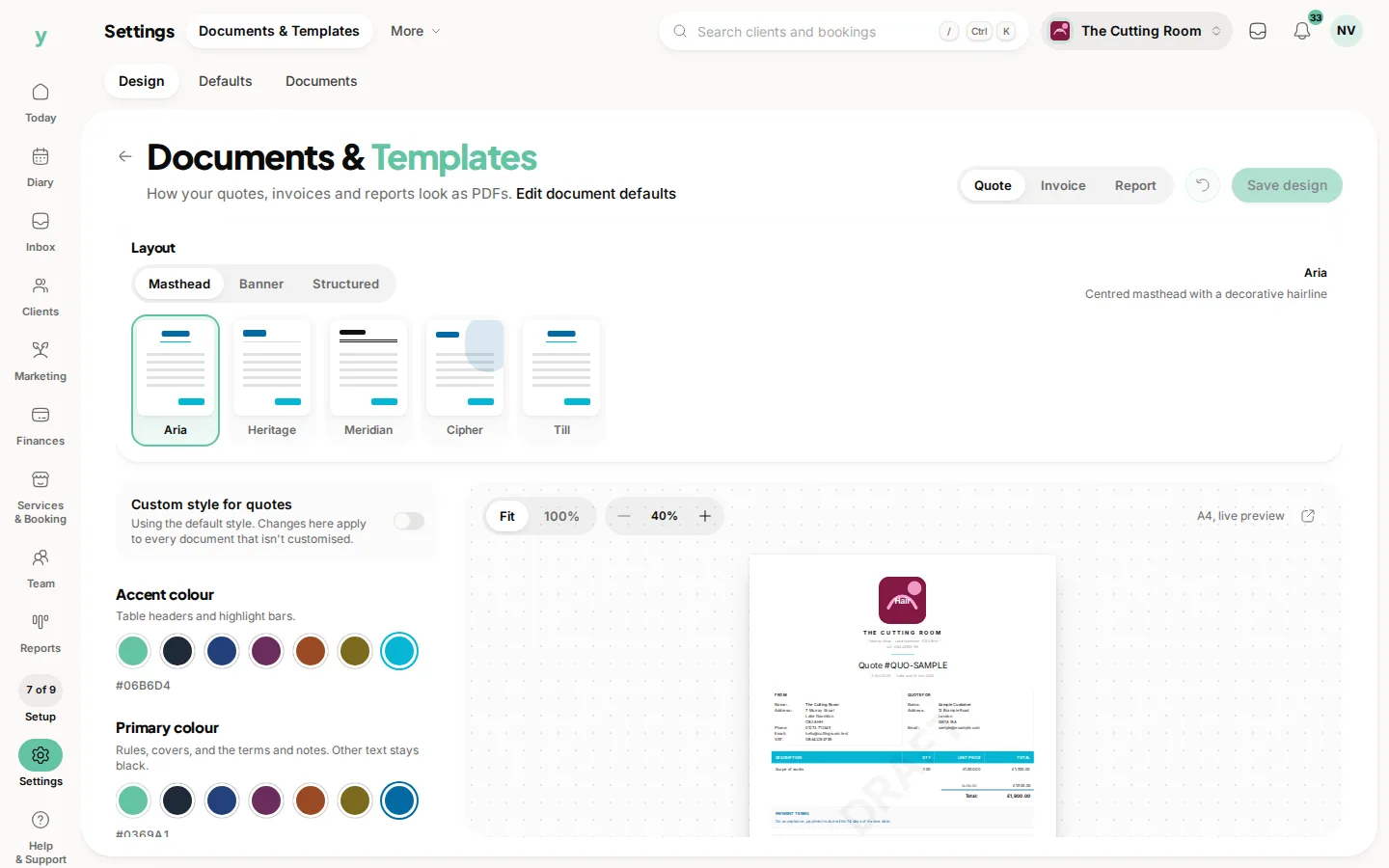
The editor
The preview fills the right of the screen, with a tab for each document type. Quote, Invoice and Report are always there and Garage Pro adds Purchase Order. Switch tabs to see the same settings applied to a different document.
The controls on the left are split into two tabs, Content and Style.
Style
- Layout: fifteen designs, from classic and minimal through to editorial, industrial, luxury and receipt. Each one has a short description under the picker.
- Typography: a choice of typefaces, from clean sans faces to serif ones for a more traditional feel.
- Primary and accent colour: your brand colours, entered as hex values.
- Cover colour: an optional colour band across the top of the document.
- Logo: on or off, at four sizes. Your logo comes from your business profile.
Content
The content switches decide what actually appears on the page: line numbers, notes, the tax breakdown, your VAT number, your company number, the customer's address and email, the site address, due dates, valid until dates, payment links, a payment QR code, quote acceptance links, payment terms, terms and conditions, bank details and draft or paid watermarks.
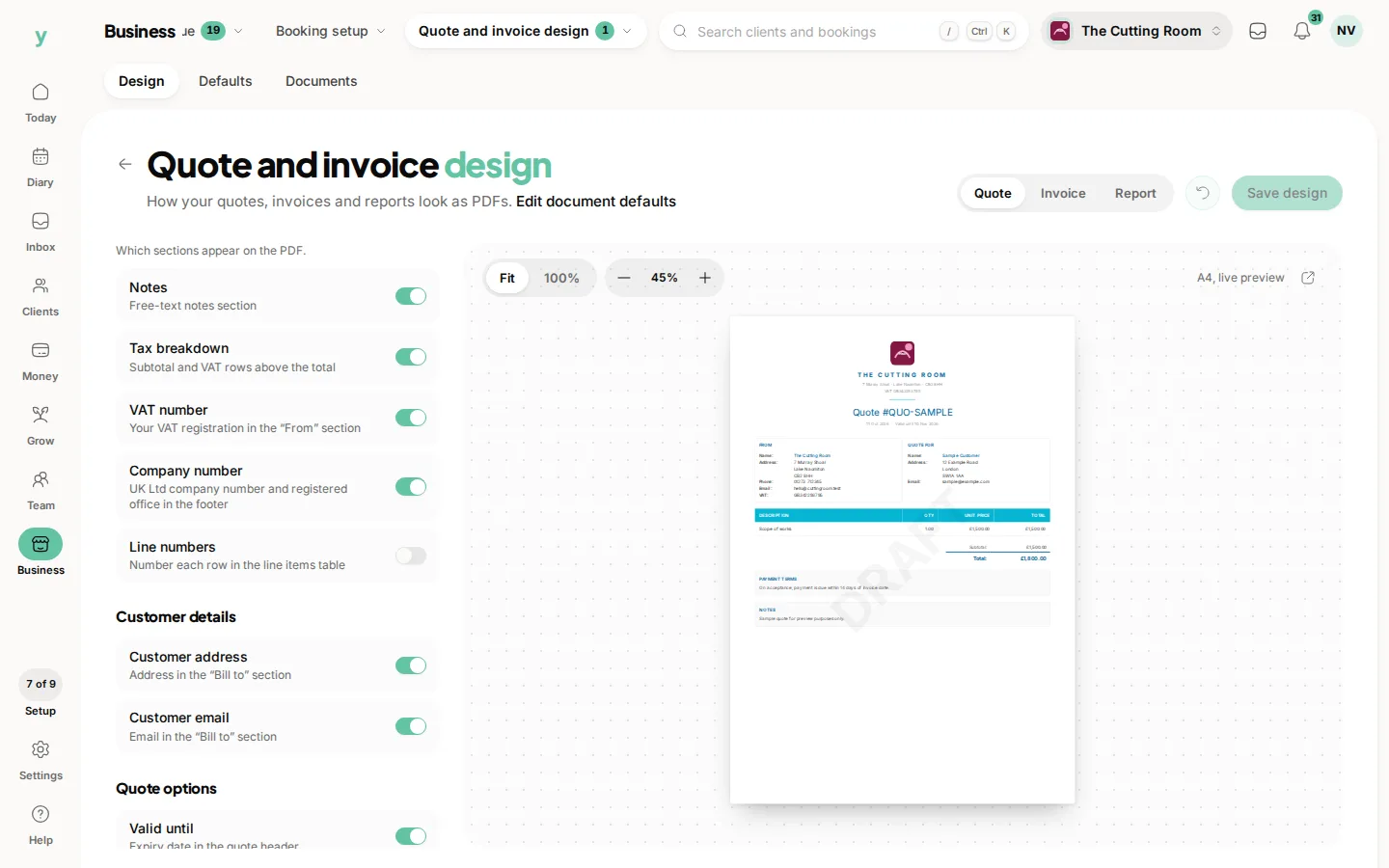
The wording behind those switches is not set here. Your bank details, terms and footer text live in Document Defaults. The switch decides whether they are printed.
A different look for one document type
At the top of the Style tab is a switch called Custom style for whichever document you are viewing.
Left off, that document uses your default style along with everything else. Turn it on and the look settings you change apply to that document type only, which is how you give quotes a bolder cover than invoices without maintaining two brands.
Two reset links are on hand
reset this document back to the default style or reset every document at once.
Content switches are deliberately global. Only the look varies per document, so you cannot accidentally leave your VAT number off one document type and not another.
The preview
The preview renders a sample document with made up customers and lines. It never shows real customer data, so you can experiment safely and share your screen without a second thought.
Click Save changes when you are happy. Nothing you are trying out affects a live document until you do.
On the app
Go to More, then Business Settings, then PDF Template. Layout, typeface, colours, logo size and the content switches are all there, with a link straight through to Document Defaults for the wording.
Common questions
Where does my logo come from?
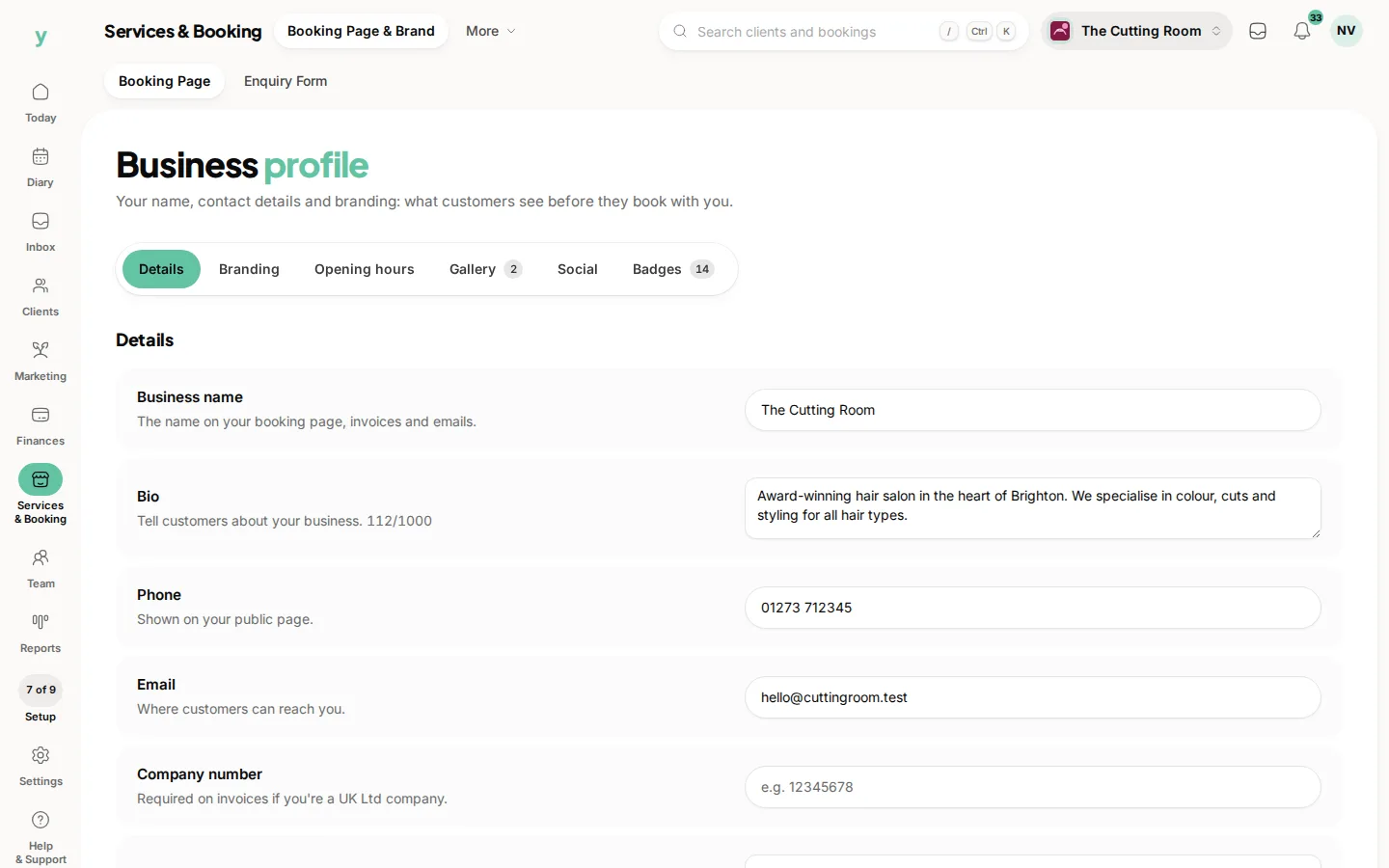
Your business profile, under Services & Booking, then Booking Page & Brand. Upload it once and it flows through to your documents and your public page.
Can my quotes look different from my invoices?
Yes. Turn on the custom style switch while viewing quotes and the layout, typeface and colours you set apply to quotes alone.
Why can I not change what a document says, only whether it shows?
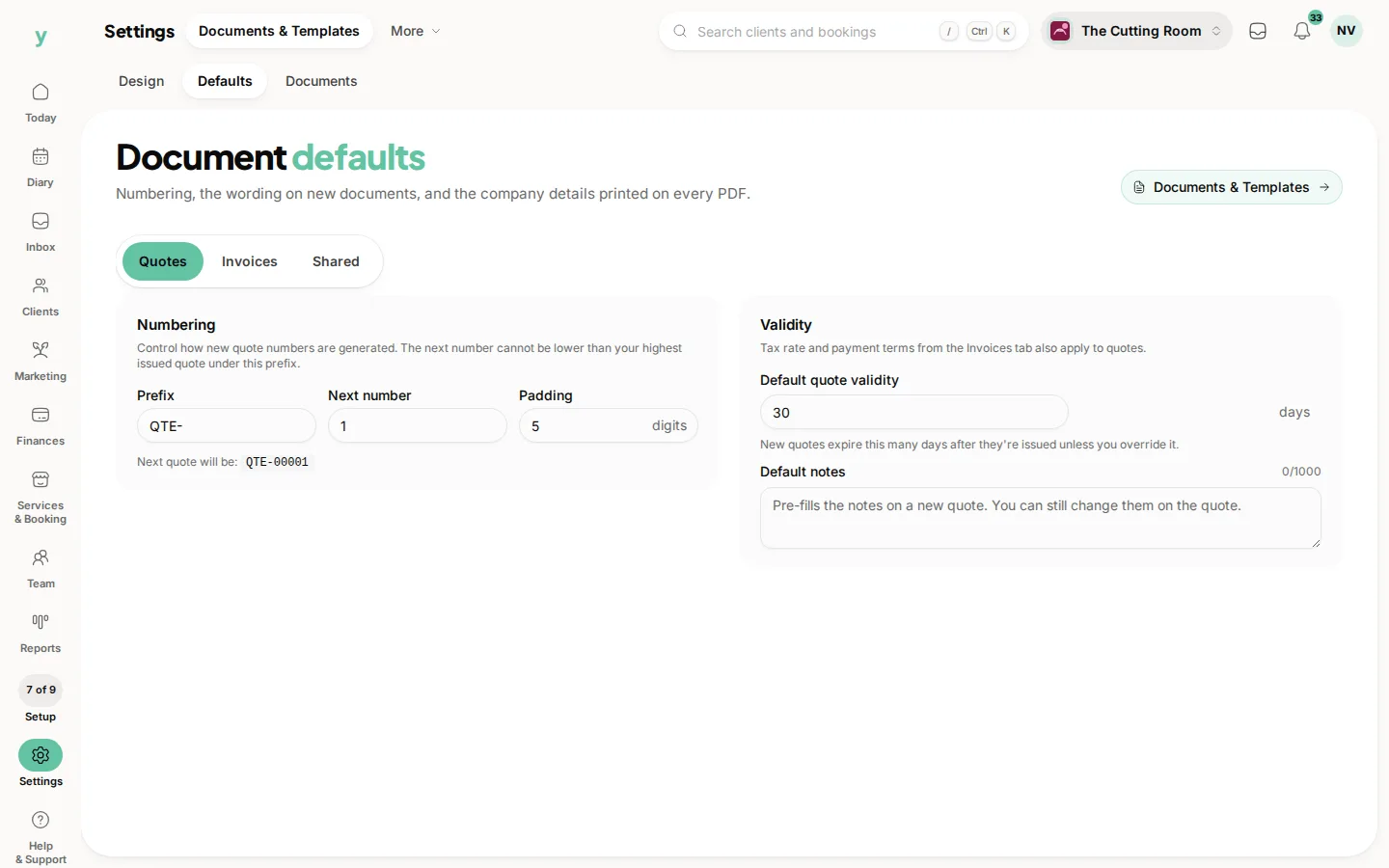
Because the words belong to your business rather than to a design. Payment terms, terms and conditions, bank details and the footer are set once under Settings, then Documents & Templates, then Defaults and every template prints the same ones.
Does the preview use a real invoice?
No. It is a sample built for the purpose, so nothing you do here can touch a customer's document.
Will changing the template restyle documents I have already sent?
A PDF a customer has downloaded stays as it was. Documents generated after your change use the new design.