
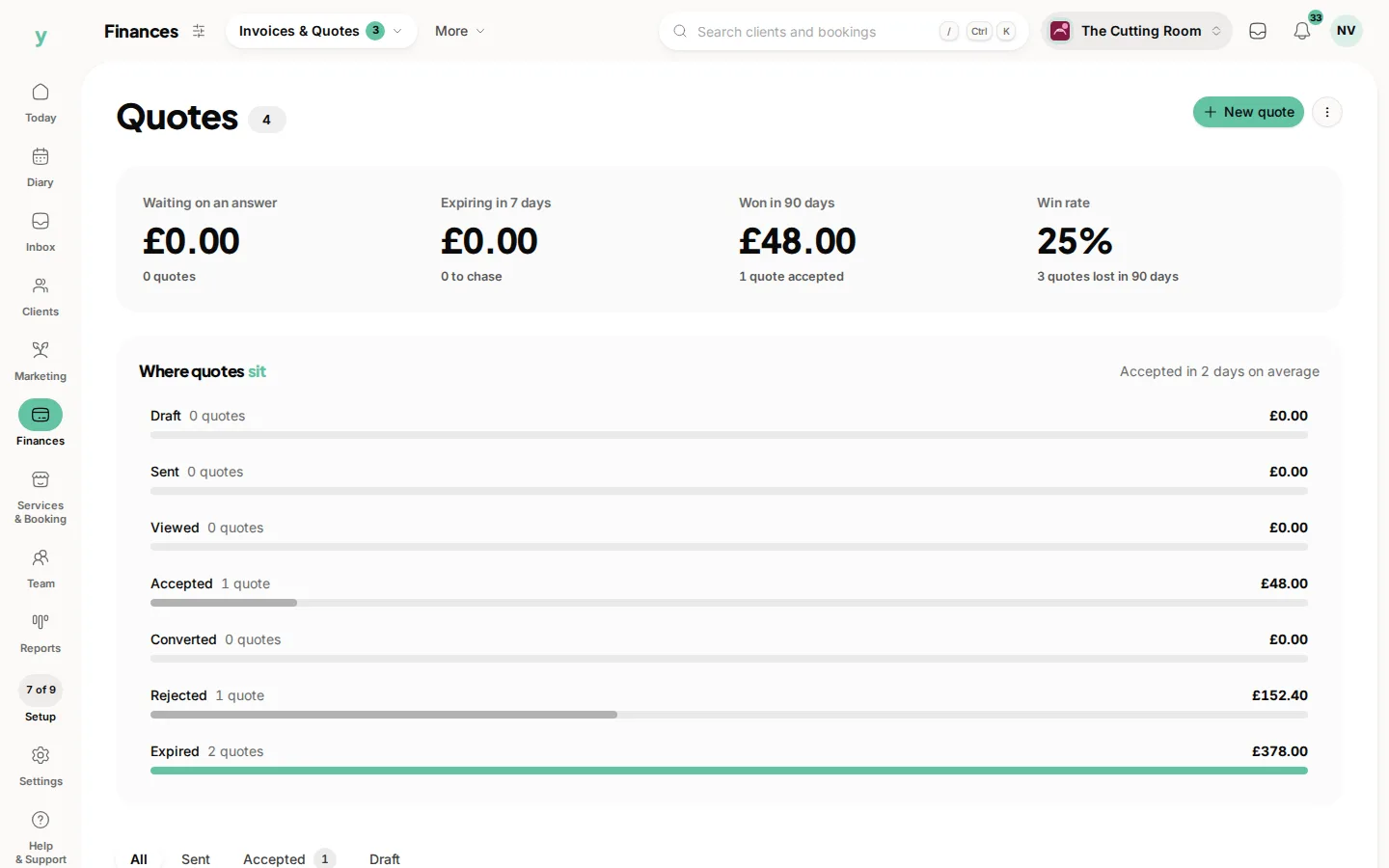
Go to Finances, then Invoices & Quotes, then Quotes. Create a quote, add your lines, then send it. The customer gets an email with the quote and can accept or decline it without ringing you.
Building the quote
- 1Go to Quotes and create a new one. The button is New quote
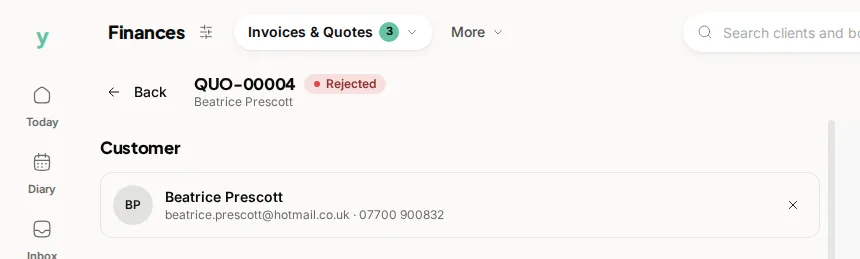
- 2Choose the customer or add a new one as you go
- 3Add your lines with a description, a quantity and a price
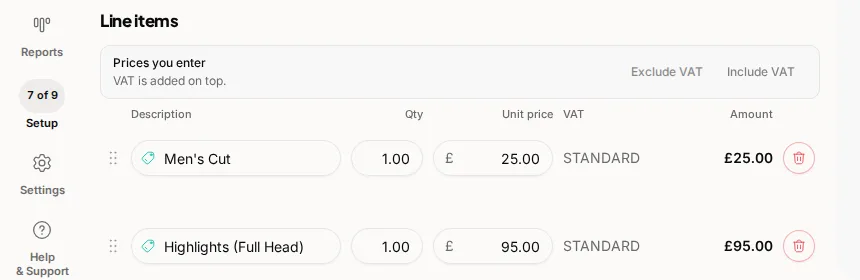
- 4Check the totals and any VAT
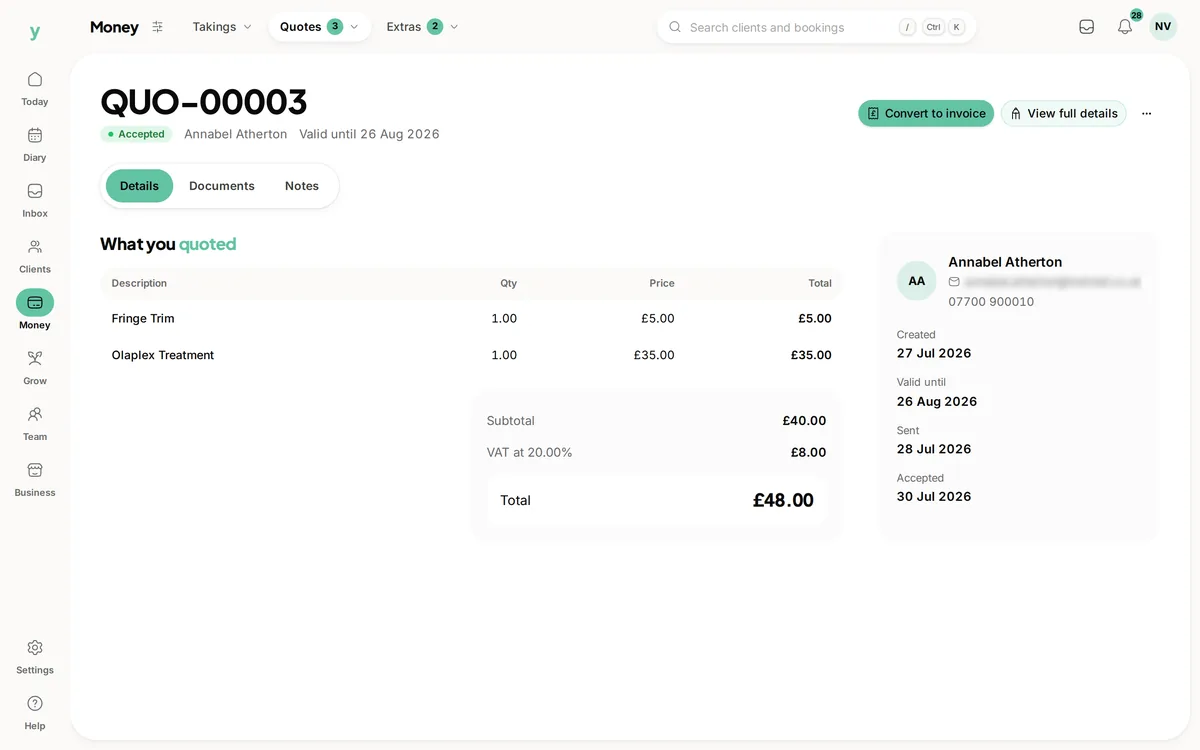
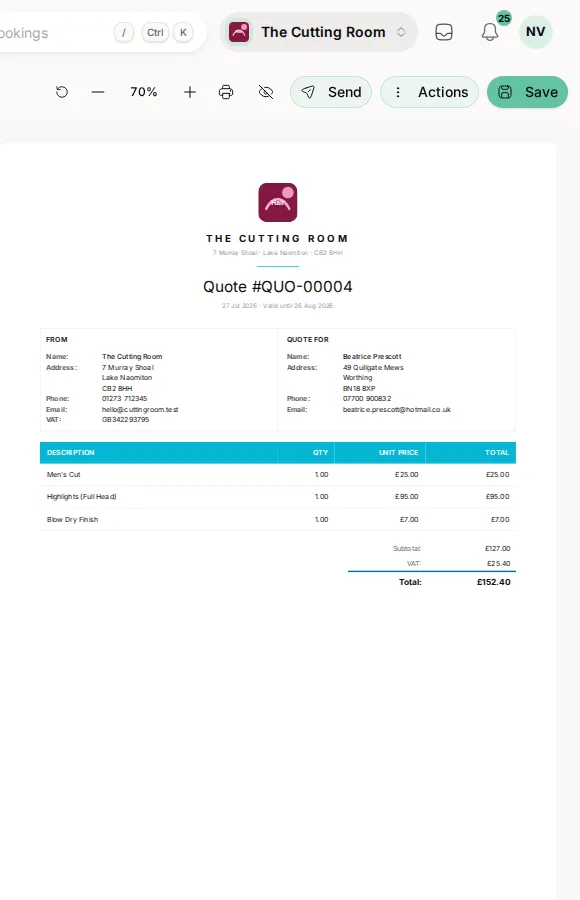
- 5Preview it to see the PDF exactly as the customer will
Sending it
Send the quote and it goes out by email with a link. Until you send it a quote sits as a draft and nobody sees it.
Previewing first
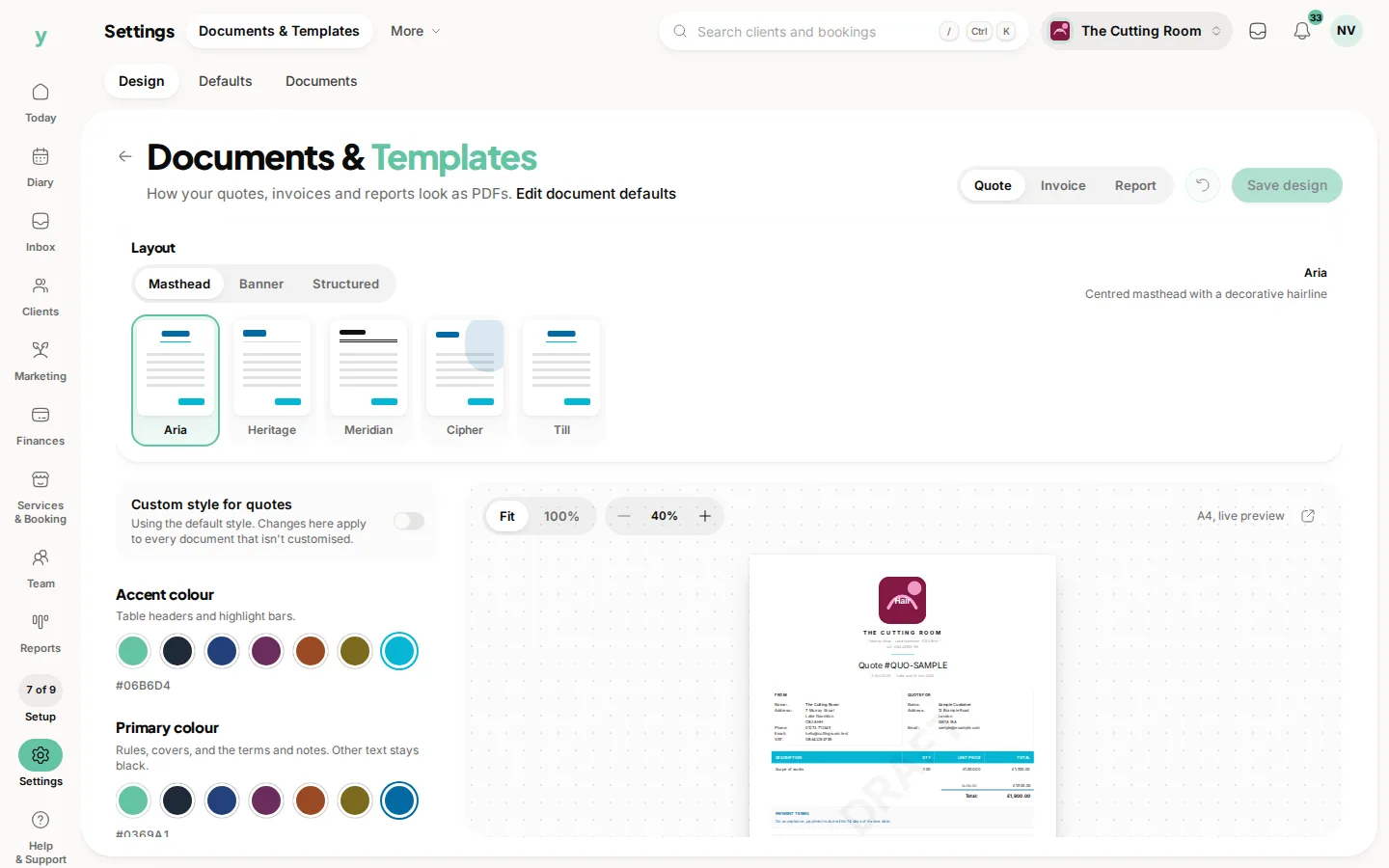
The preview shows the real document, using the branding from Settings, then Documents & Templates. It is worth a look the first few times so you know what your customers are receiving.
Duplicating a quote
If you quote similar work often, open a previous quote and duplicate it. That copies the lines so you only change what differs, which is much faster than starting again.
Deleted by mistake
Deleted quotes are not gone. Open Quotes, choose Deleted and choose Restore.
Common questions
Can the customer accept a quote themselves?
Yes. The email carries a link where they can accept or decline it and the status updates for you automatically.
Do I need to add a customer before quoting?
No. You can add the customer while building the quote and the record is created for you.
Can I change a quote after sending it?
Edit it and resend. The customer gets the updated version, so make sure they are looking at the latest one before they accept.