
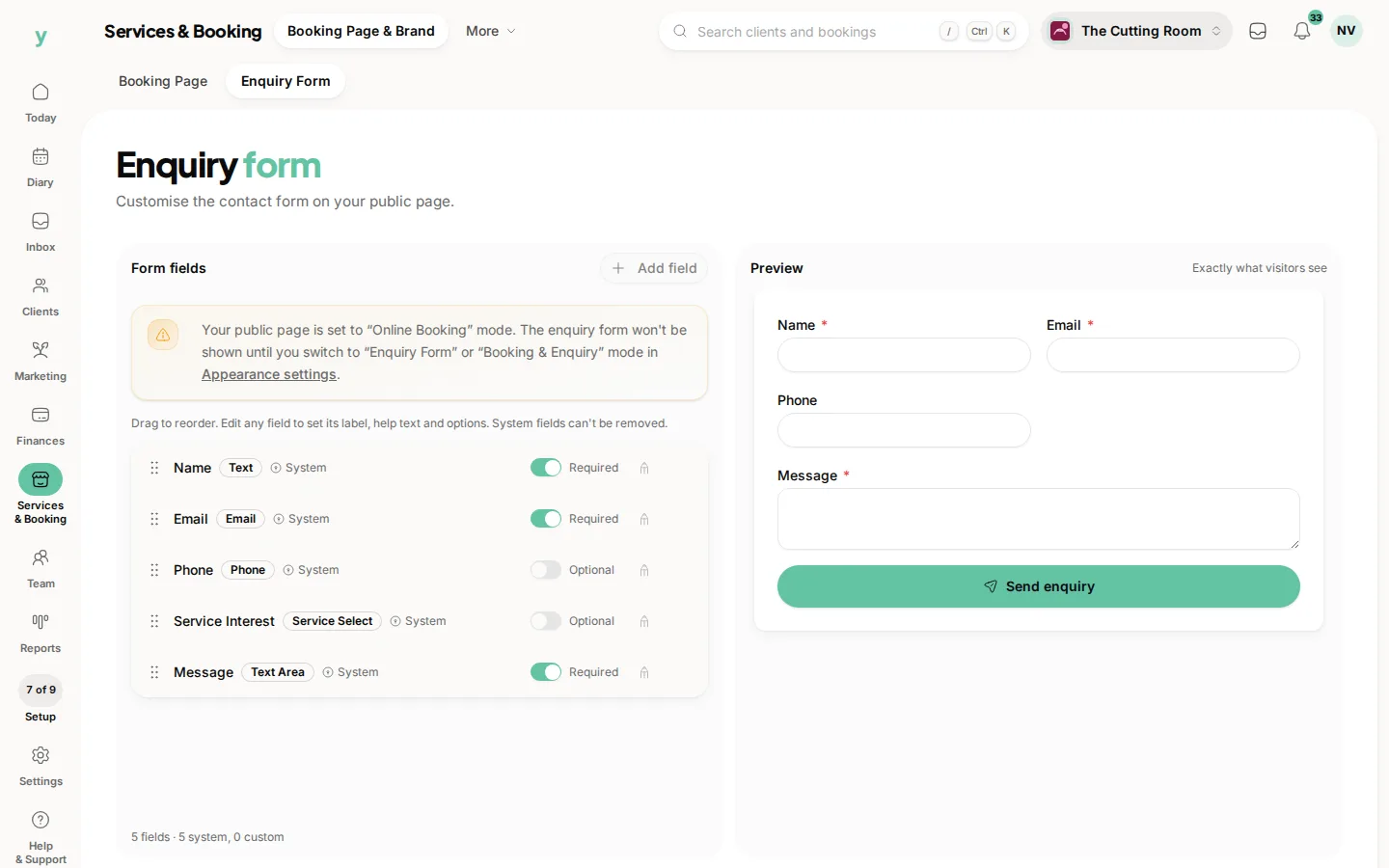
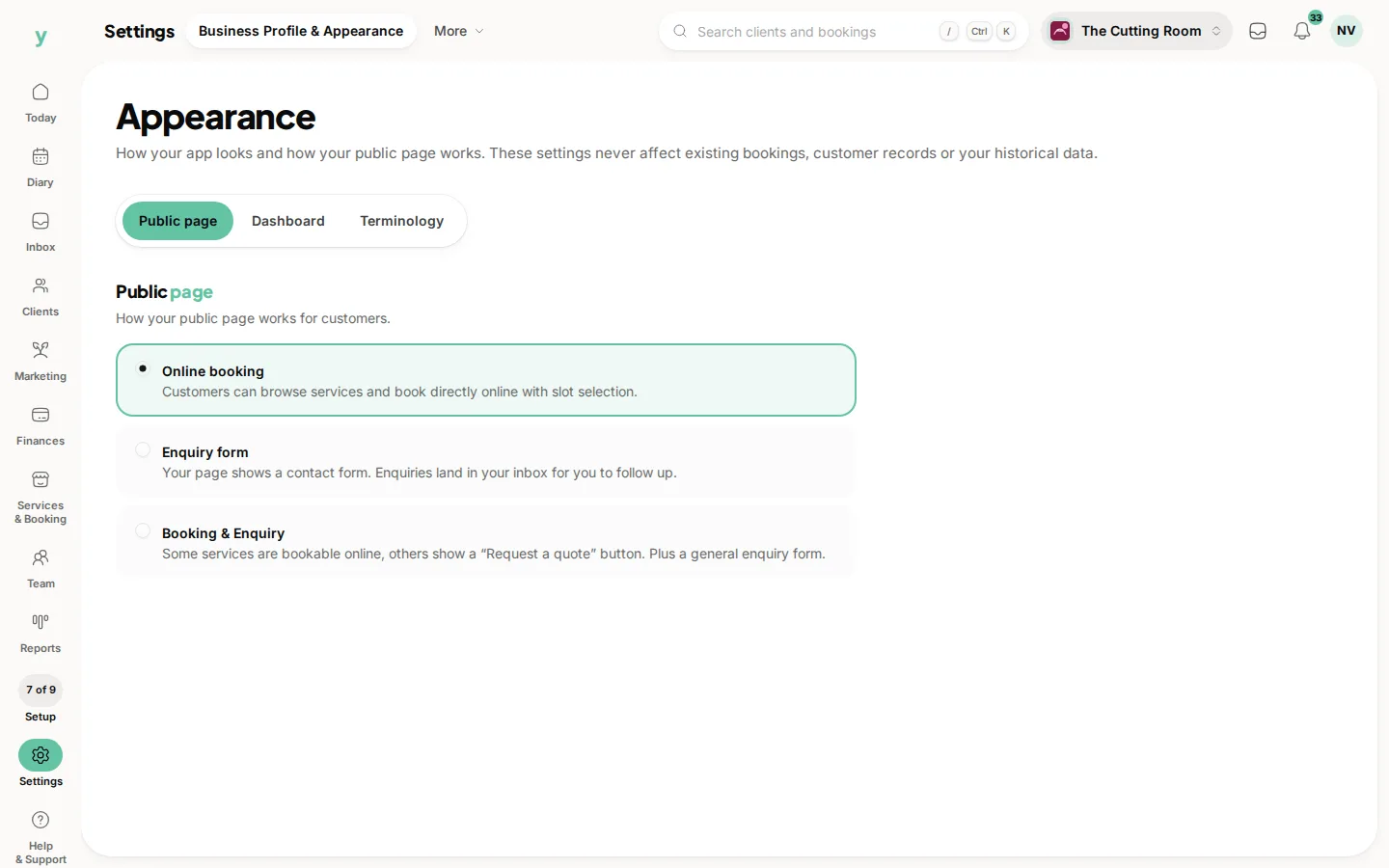
The enquiry form is the contact form on your public page. Turn it on under Settings, then Business Profile & Appearance, on the Public page tab. Choose Enquiry form or Booking & Enquiry to keep online booking as well. Then set up its fields under Services & Booking, then Booking Page & Brand, then Enquiry Form.
Why the two places
The Public page tab controls whether the form appears at all. The Enquiry form screen controls what it asks. Until it is enabled the fields cannot be edited, which is why that screen tells you to turn it on first.
Choosing your fields
Ask for the least you need to reply. A name and one way of contacting them is genuinely enough for most businesses. Every extra field costs you enquiries. You can ask the rest when you reply.
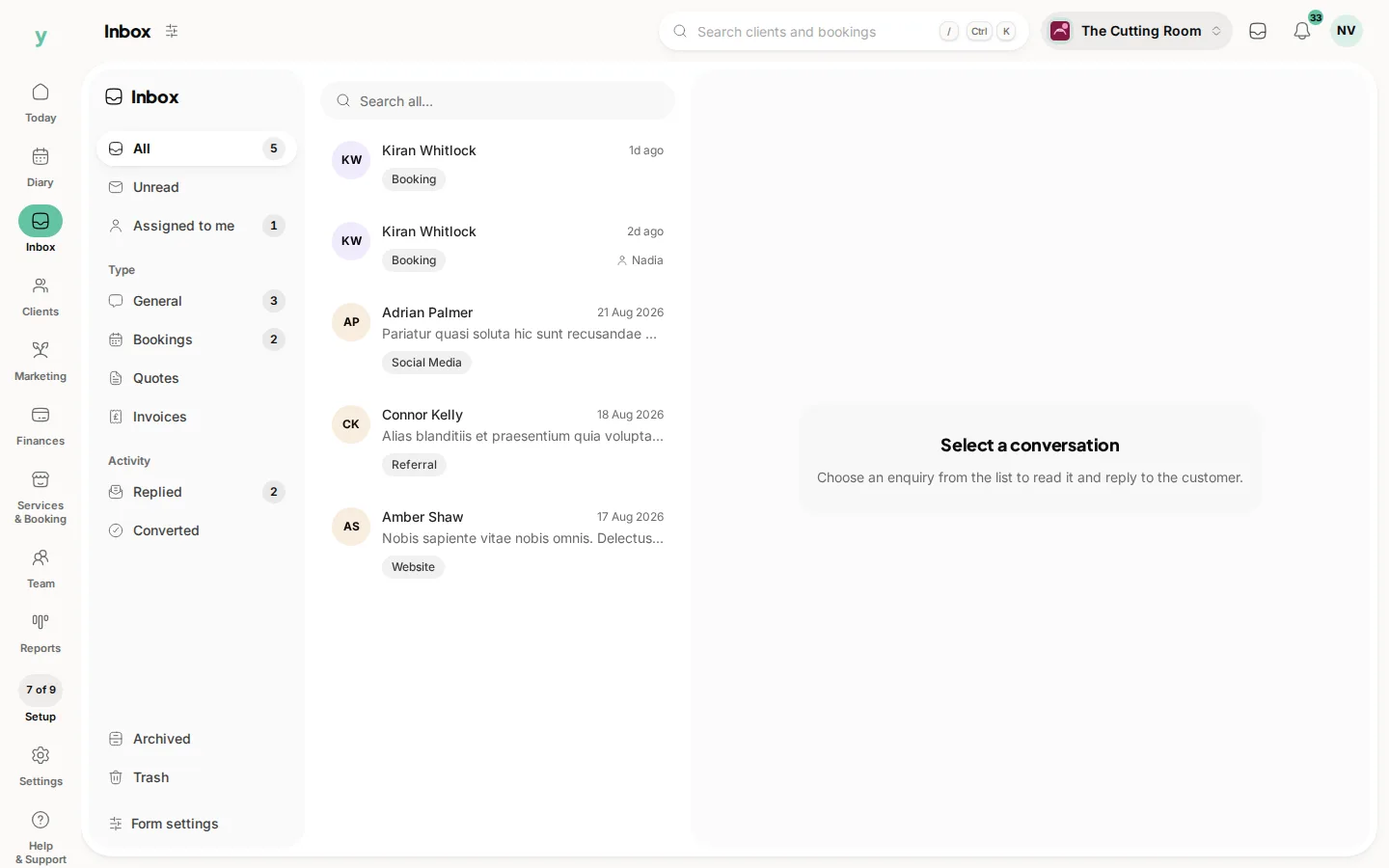
Where enquiries go
Straight into your Inbox, where they can be worked as leads. Nothing sits in an email account waiting to be noticed.
Enquiry form or booking page
If people can book directly, let them. The enquiry form is for work that needs a conversation first, like a quote for a job whose price depends on seeing it.
Common questions
Why can I not edit the fields?
The form is switched off. Open the Public page tab under Settings, then Business Profile & Appearance, choose Enquiry form or Booking & Enquiry and the fields become editable.
Do I get an email when someone enquires?
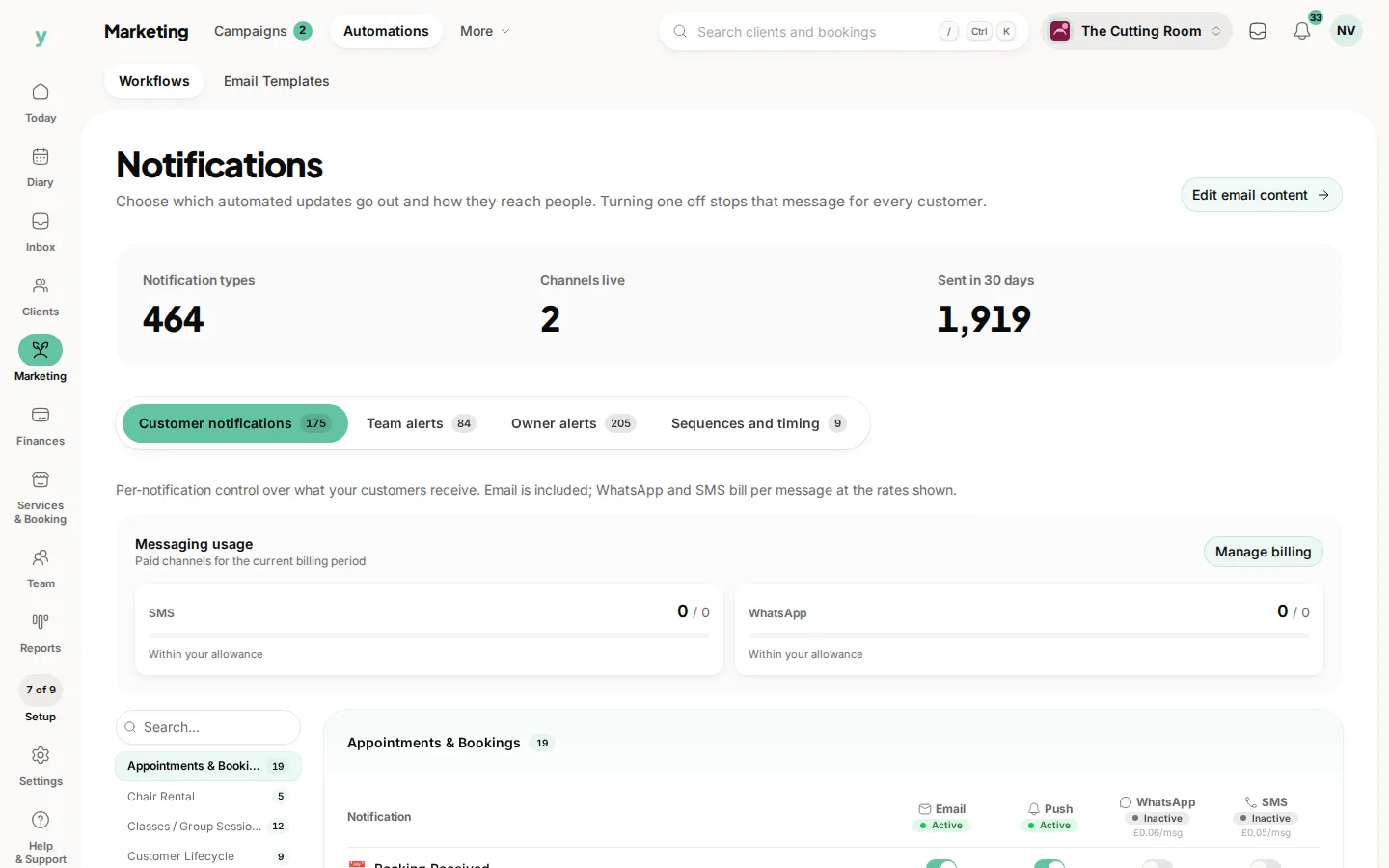
Enquiries arrive in your Inbox. Your notification settings control what else is sent. Check Marketing, then Automations.
Can I have both an enquiry form and online booking?
Yes. Most businesses do. Booking for the standard work, enquiries for anything that needs pricing up.