
Youzse recognises Acuity Scheduling's column names, so a Acuity Scheduling export imports with the mapping already done for you. Export your data, upload the files and check the Mapping step rather than filling it in.
Exporting from Acuity Scheduling
Sign in at acuityscheduling.com or reach it through your Squarespace dashboard.
- 1Open Reporting from the sidebar.
- 2Set the date range as wide as it will go, because Acuity defaults to a recent window.
- 3Export the appointment list as CSV.
- 4That single export carries your client details too, so a separate client export is not essential.
Uploading to Youzse
- 1Go to Services & Booking, then Import
- 2Choose Full migration and add your files at the Files step
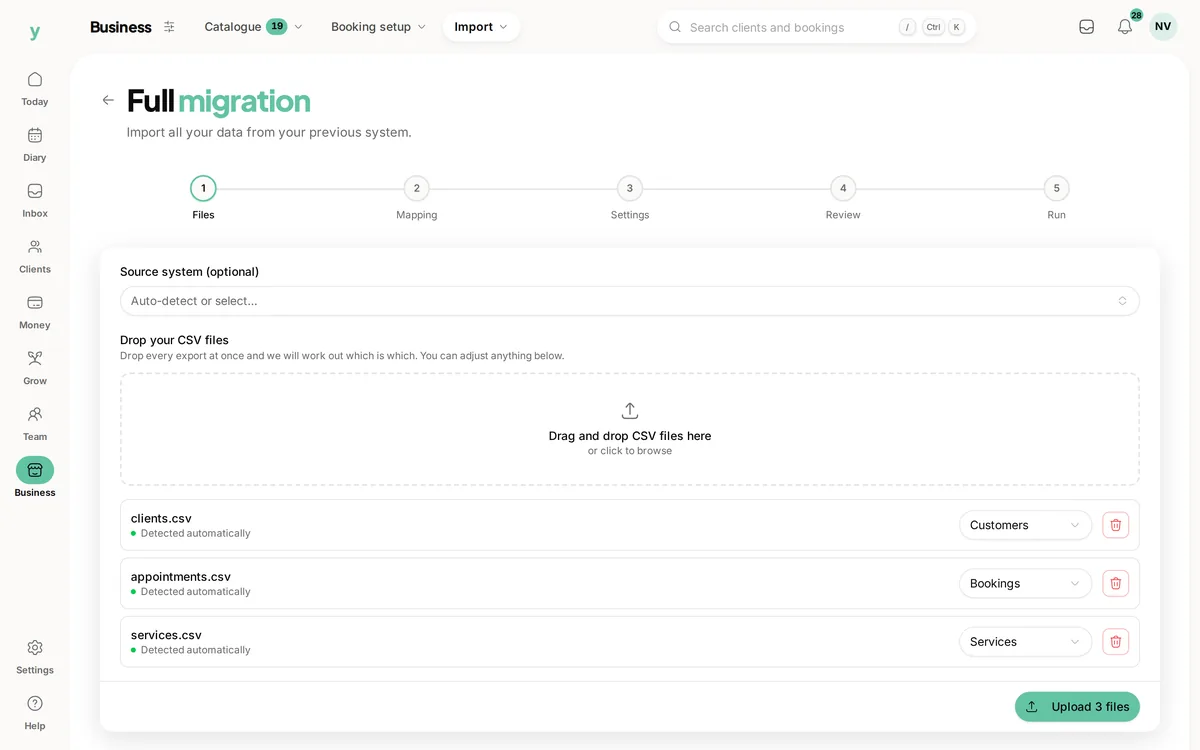
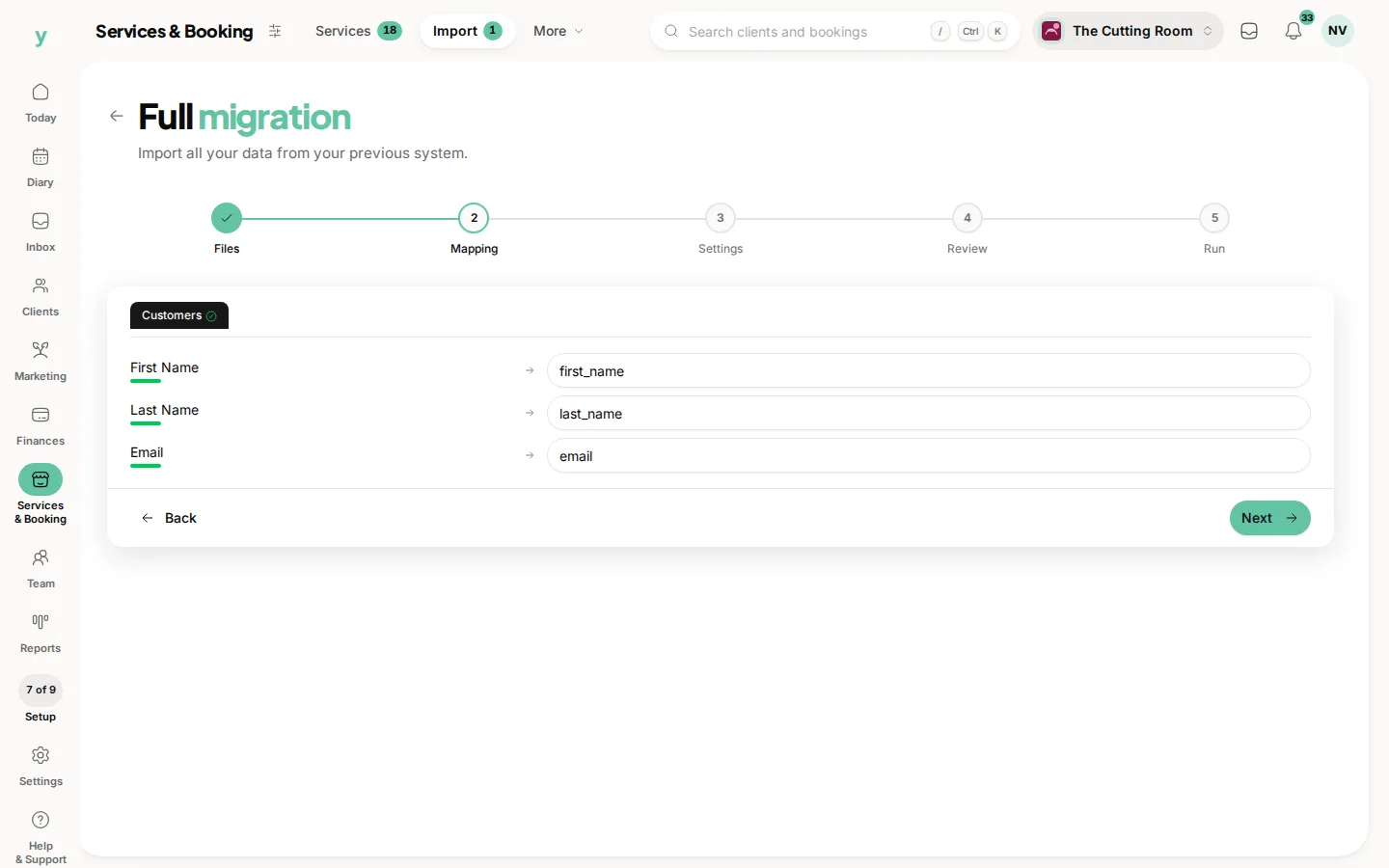
- 3At the Mapping step, check what has been matched, which coming from Acuity Scheduling should already be right
- 4At the Settings step, describe where the data came from and pick your lawful basis
- 5Review the counts and run it
Leave Source system on Auto-detect. Youzse works out that the file came from Acuity Scheduling from the headers.
Columns Youzse recognises
- Clients: First Name, Last Name, Email, Phone and Notes
- Services: Appointment Type, Category, Duration and Price
- Appointments: Start Date, Start Time, Appointment Type, First Name, Last Name, Email, Calendar, Duration, Price, Notes, Canceled and No Show
- Staff: Calendar, Calendar Name and Email
Worth knowing
- Acuity calls a staff member a Calendar and a service an Appointment Type and both are recognised
- The Canceled and No Show columns hold true or false and are turned into proper cancelled and no-show statuses
- Where neither flag is set, an appointment is imported as completed
What will not come across
- Saved card details, which no platform can transfer
- Photos and attachments
- Staff logins, because staff are invited to set their own password
Common questions
I only have an appointment export. Is that enough?
Yes. Acuity puts client name, email and phone on every appointment row, so customer records can be built from it.
What is the Calendar column?
Acuity uses Calendar for the person or resource the appointment belongs to. It becomes your staff member.
Why do all my appointments say completed?
Acuity only flags cancellations and no-shows. Anything without a flag is treated as completed, which is right for past history.