You can move from GlossGenius to Youzse with a CSV export. GlossGenius is not one of the platforms whose column names Youzse recognises on sight, so you match the columns yourself at the Mapping step, which takes a couple of minutes per file.
Exporting from GlossGenius
Sign in to GlossGenius on the web.
- 1Open your client list.
- 2Use the export option and download as CSV.
- 3Export your appointment history from the calendar or reports area.
- 4If export is not available on your plan, contact GlossGenius support and request your data.
Save each export as CSV. If it arrives as an Excel file, open it and use Save as to produce a CSV, because the importer accepts CSV only.
Uploading to Youzse
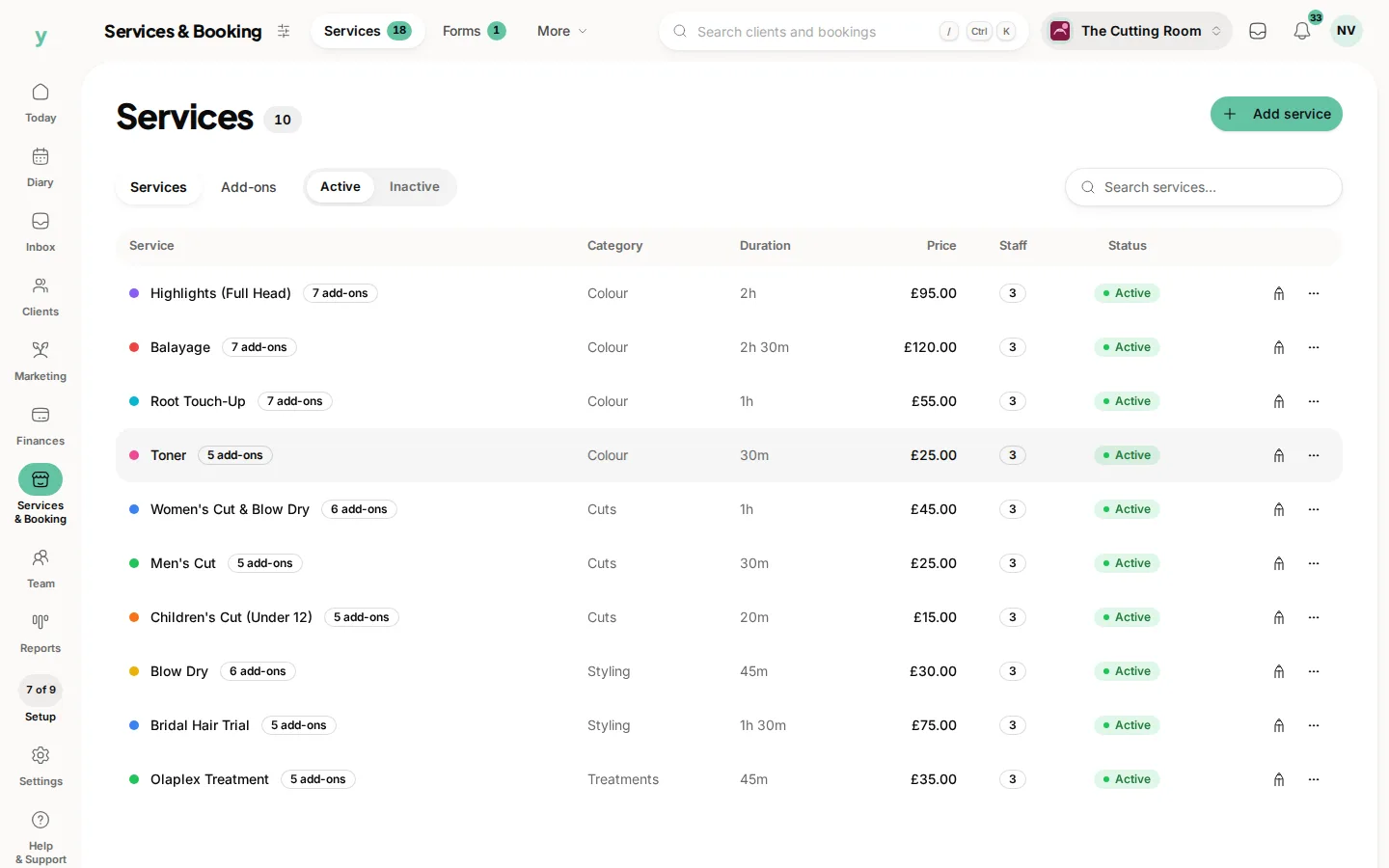
- 1Go to Services & Booking, then Import
- 2Choose Full migration and add your files at the Files step
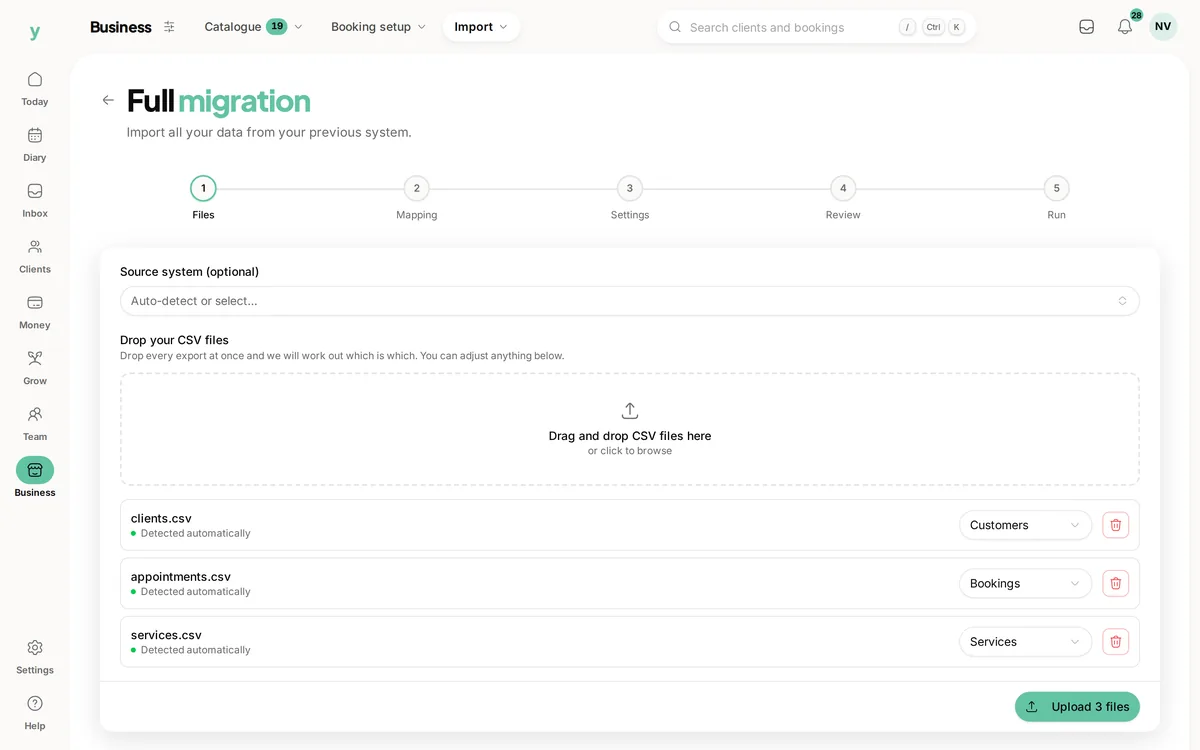
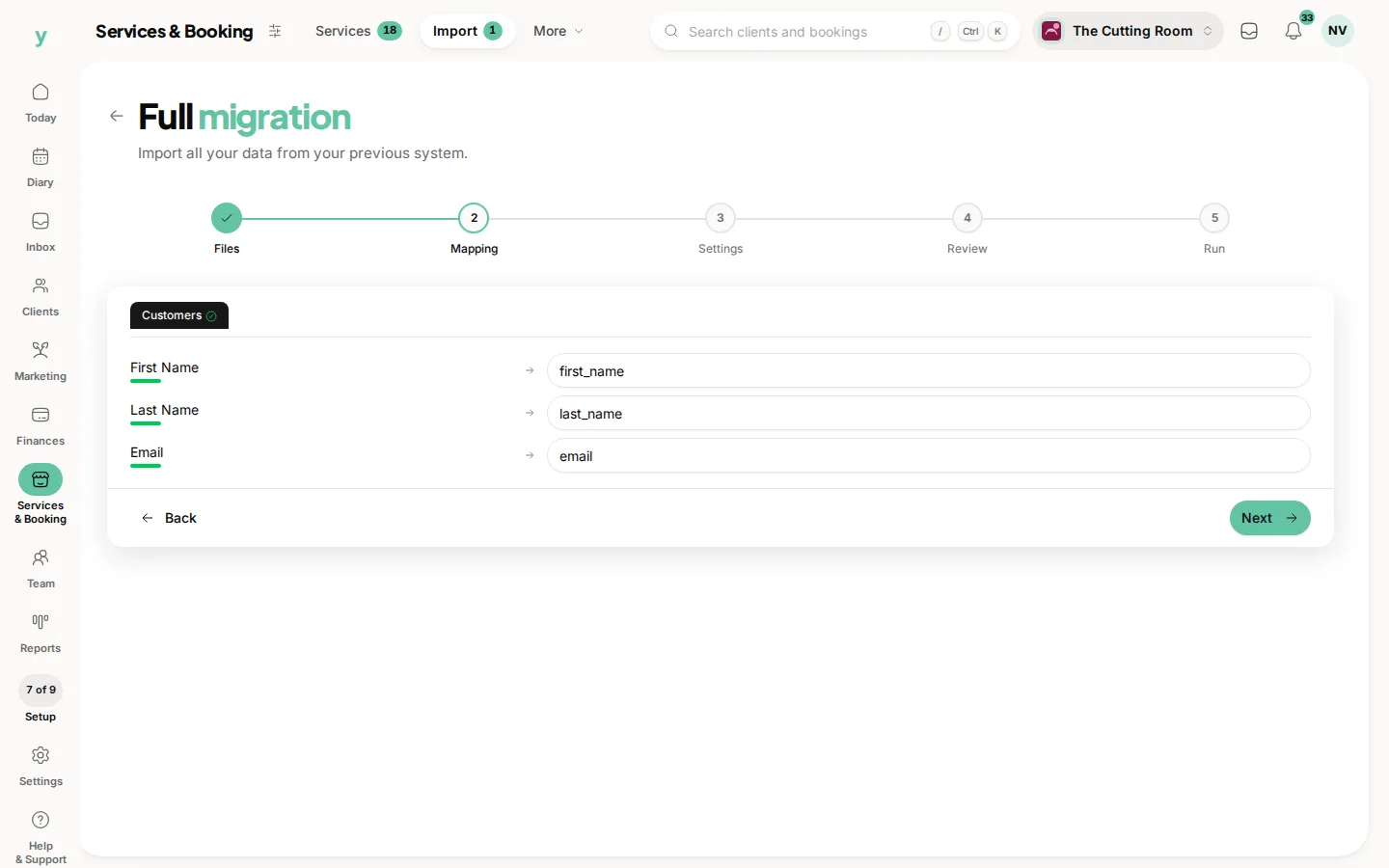
- 3At the Mapping step, point each column at the Youzse field it belongs to, which is the part that matters here
- 4At the Settings step, describe where the data came from and pick your lawful basis
- 5Review the counts and run it
Mapping a GlossGenius export
Name the files clearly, something like clients.csv and appointments.csv, because the record type is worked out partly from the filename. Then map the essentials and leave the rest unmapped.
- For customers: first name, last name, email and phone. Everything else is a bonus
- For appointments: start date and time, service name, customer name, staff name and status
- For services: name, duration in minutes and price
If your file has one full name column, map it to the full name field rather than splitting it yourself. If date and time sit in separate columns, combine them into one column in your spreadsheet before uploading.
What will not come across
- Saved card details, which no platform can transfer
- Photos and attachments
- Loyalty balances and package credits
- Staff logins, because staff are invited to set their own password
Common questions
GlossGenius has no export button. What do I do?
Contact their support and ask for your client data. You are entitled to a copy of it.
Do my client photos come across?
No. Photos and attachments cannot be imported from any platform. Save any you need before you close the account.
Will my prices come across?
If your export has a price column, yes. Otherwise set prices under Services & Booking, then Services, which is quick and worth reviewing anyway.