
Staff and services are the two imports to run first, because appointments name both. Staff import with names, emails, phone numbers and job titles and services with name, category, duration, price and description.
Staff
Import a staff file and each person becomes a team member. Where the file has an email address they are invited to set their own password. No login or password is ever imported from another system, which is deliberate.
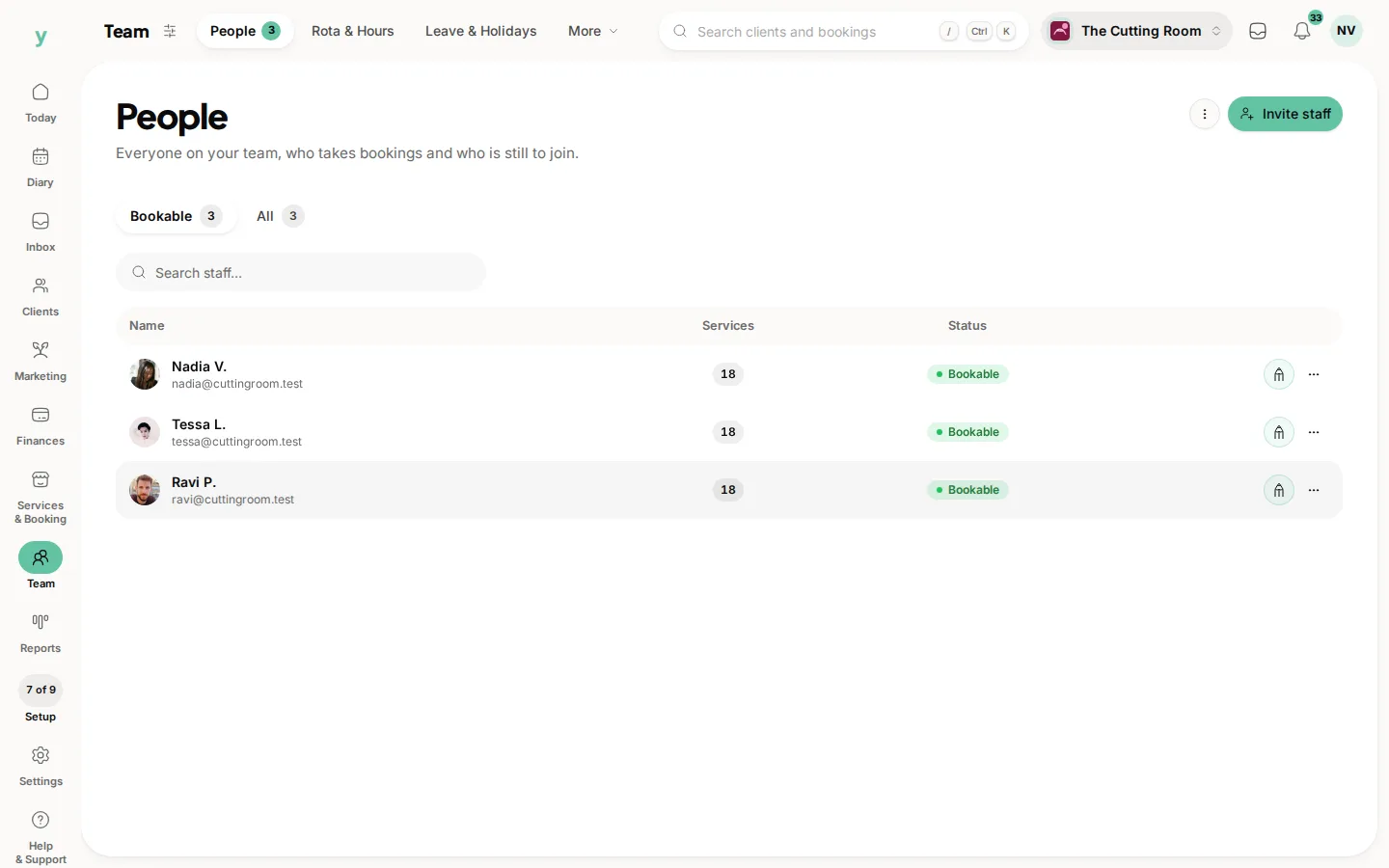
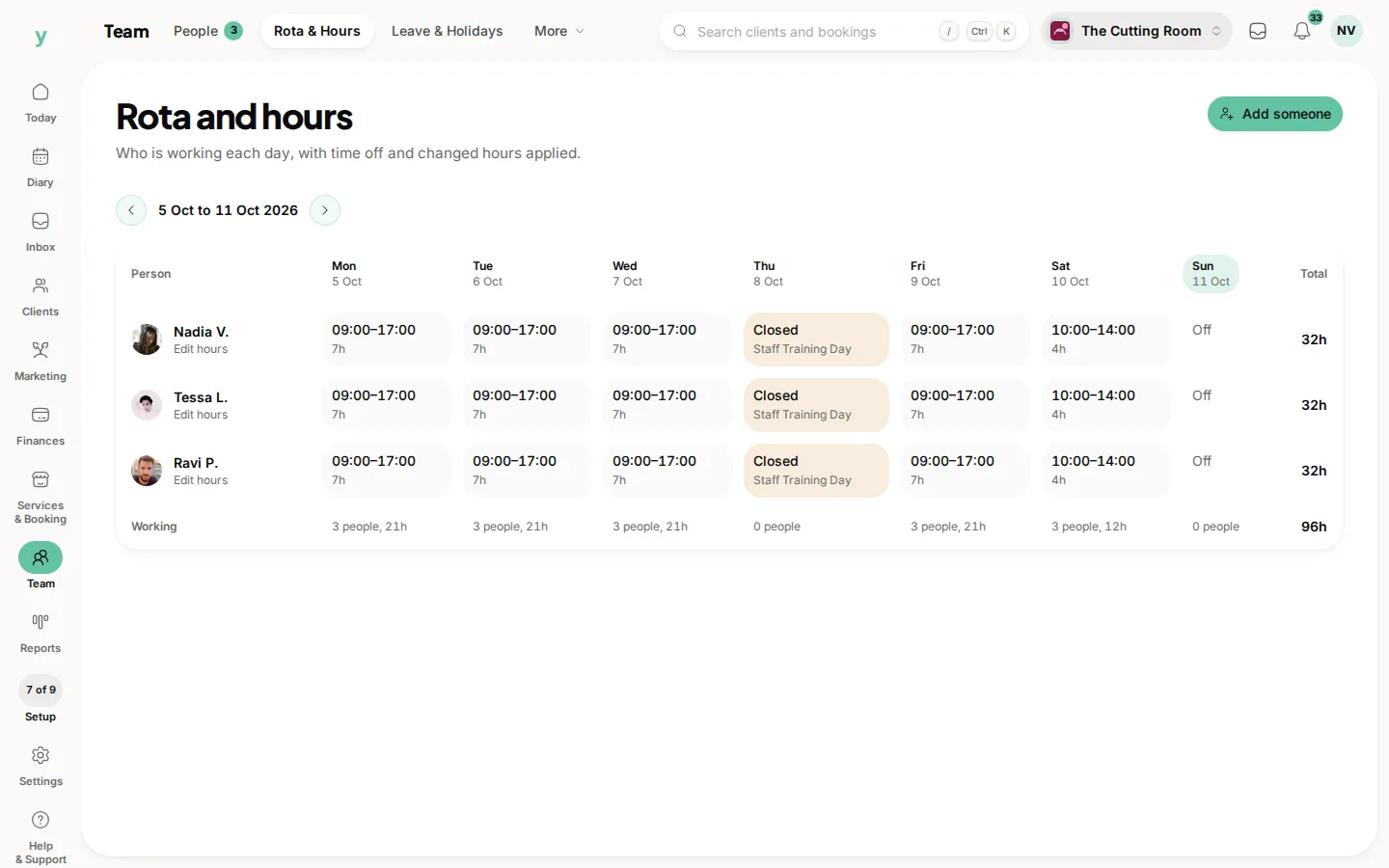
After importing staff, go to Team, then Rota & Hours and set working hours for each person, because those do not come from a CSV.
Services
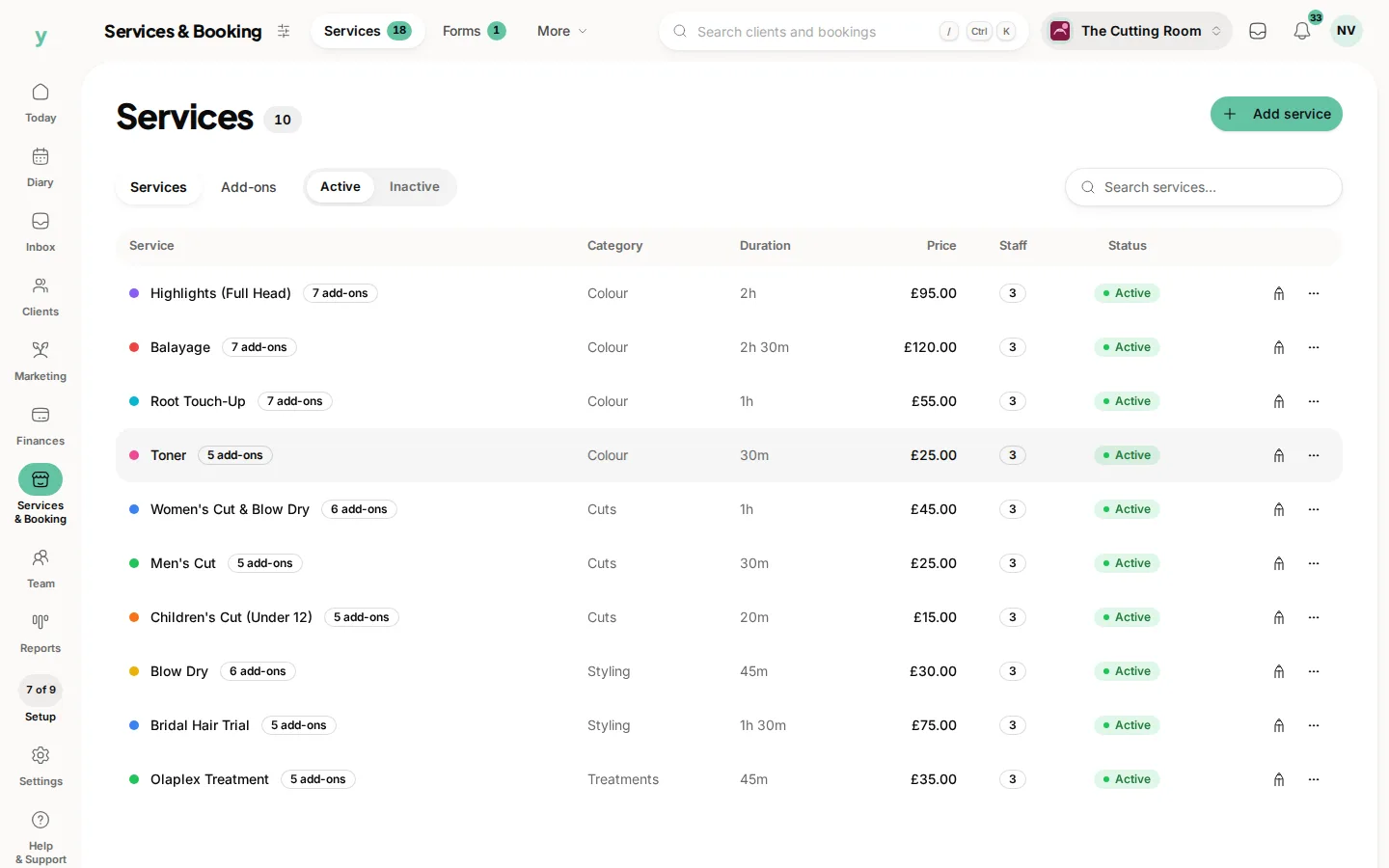
A service needs a name and is far more useful with a duration and a price. Category is worth mapping if you have one, since it groups your booking page.
Check durations after import. Some platforms export a duration in hours rather than minutes. A ninety minute treatment that arrives as one and a half minutes is obvious on the calendar but easy to miss in a list.
Which staff do which services
That relationship is not in most exports. Go to Services & Booking, then Services after importing and set who can do what, which is also what makes the right people appear on your booking page.
Rolling back a staff import
If a staff import was wrong, rolling it back removes the accounts and memberships it created, so you are not left with logins for people who should not have them.
Common questions
Do imported staff get an email straight away?
They are invited to set a password where the import included an email address. If you would rather do it later, import staff without the email column and add addresses when you are ready.
Are working hours imported?
No. Set them under Team, then Rota & Hours after importing. It is a few minutes per person and worth doing properly.
My service durations look wrong. What happened?
Your export probably used hours rather than minutes. Fix the column in the spreadsheet and import again with the duplicate rule set to Replace.