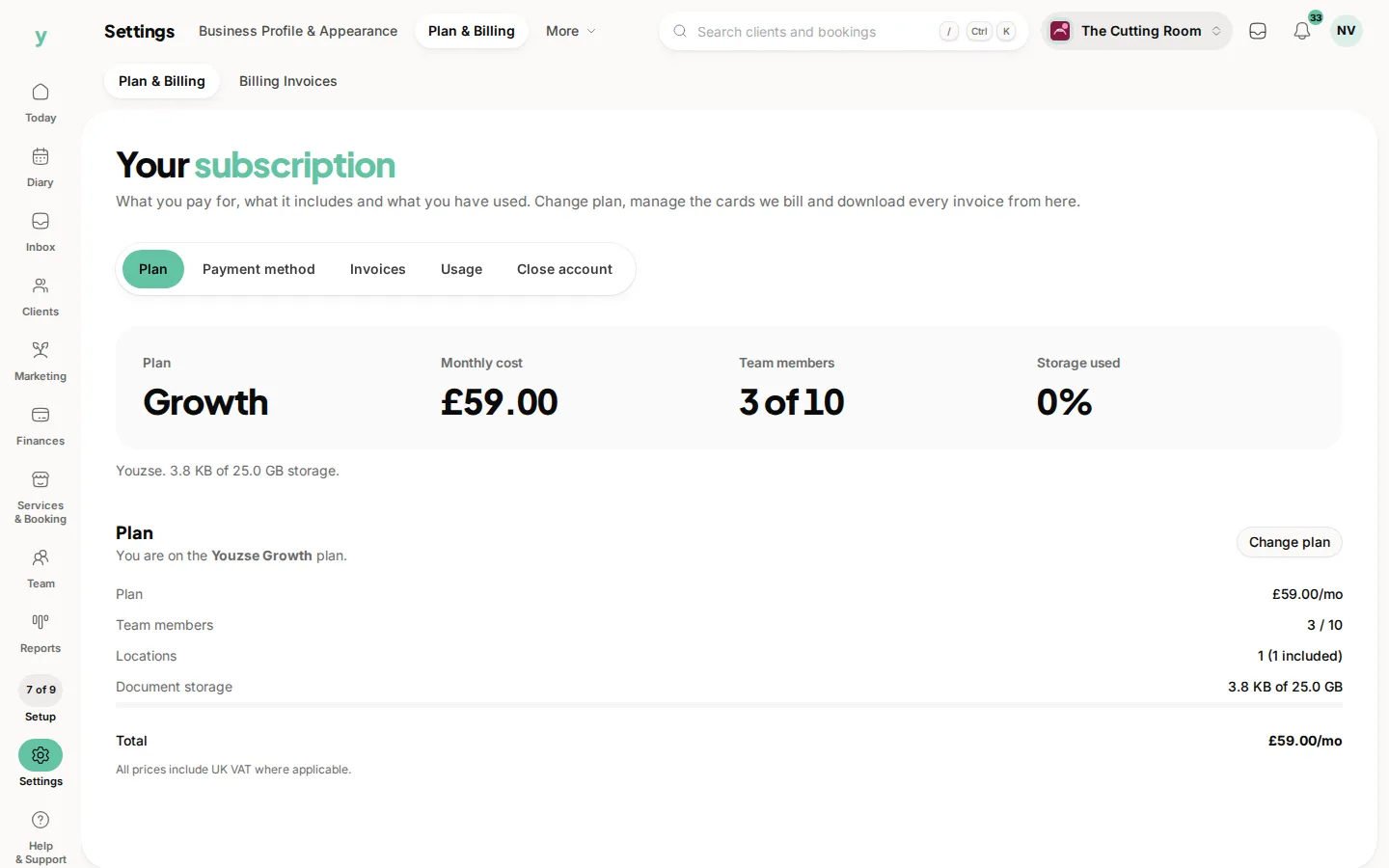
Go to Team, then People and choose Invite staff. They are invited by email and set their own password, so you never handle it.
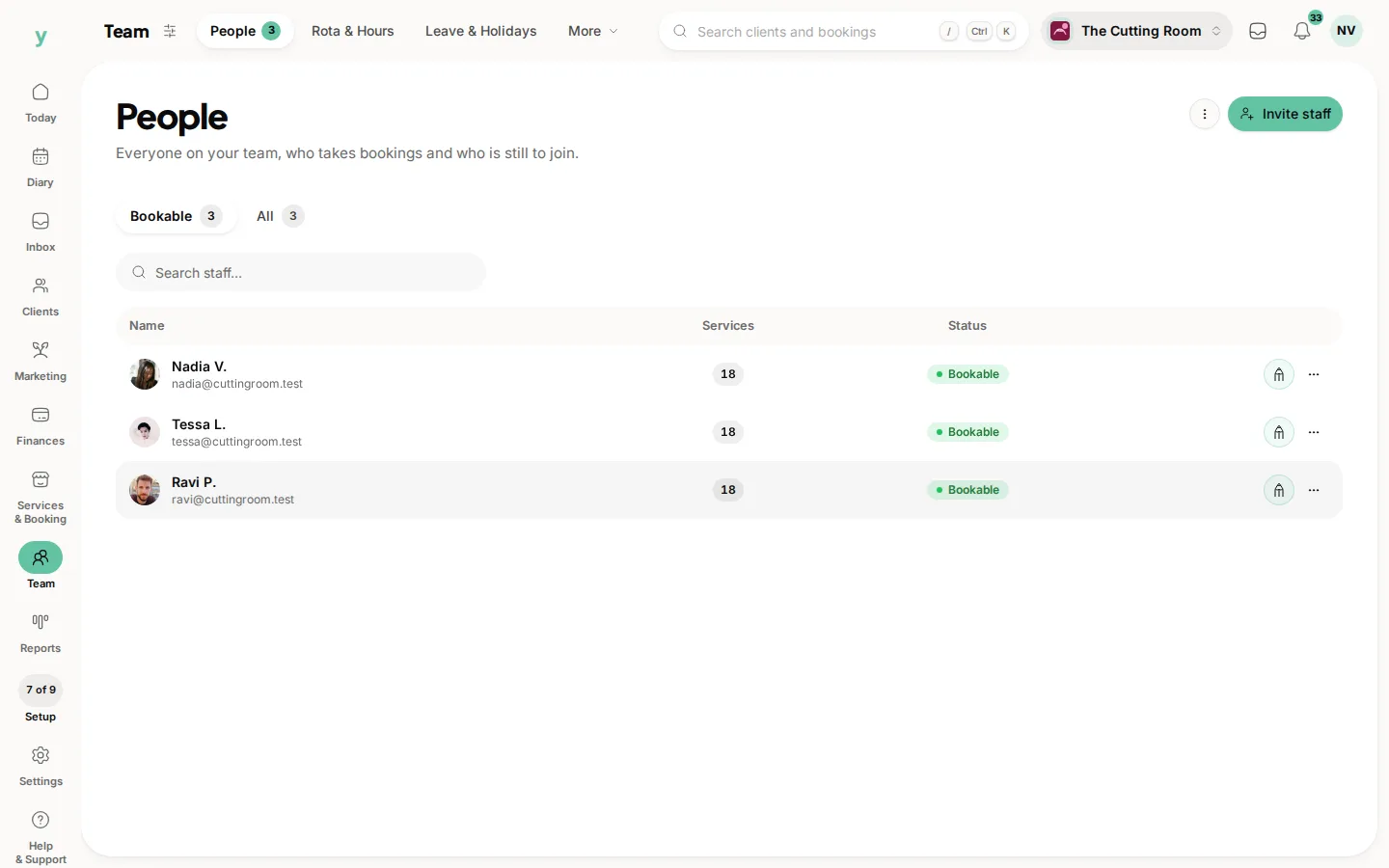
What to fill in
- Their name, as customers should see it, under Display name
- Their email address, which is how the invitation reaches them
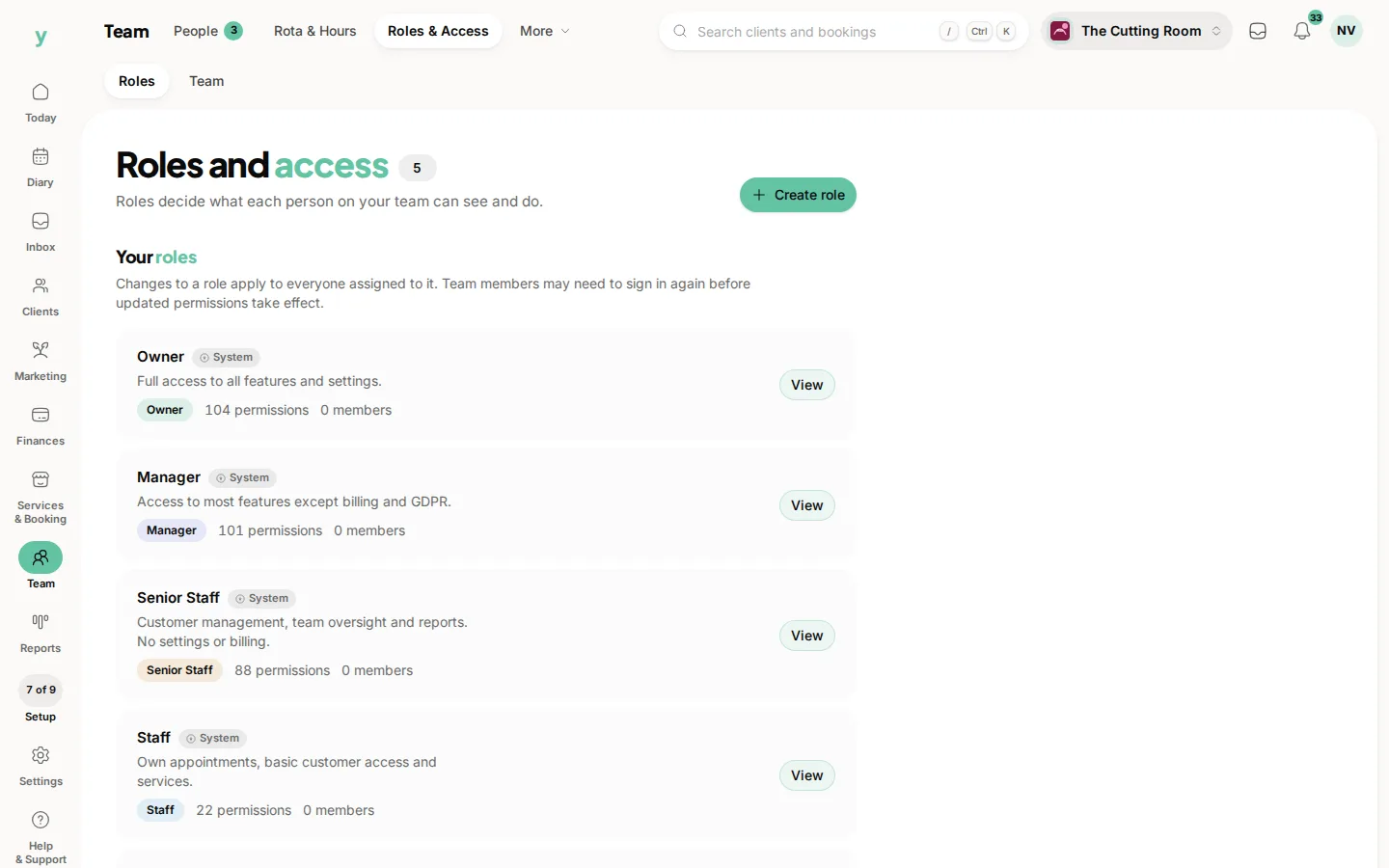
- Their role, which decides what they can see and do
- Whether they are bookable and whether they show on your booking page
Never share a login
Give everyone their own account. A shared login means you cannot tell who changed a price, who cancelled a booking or who looked at a customer record. It means one person leaving forces everyone else to change their password.
They set their own password
Passwords are never imported from another system and never set by you. That is deliberate. It is why a staff import needs email addresses.
After adding them
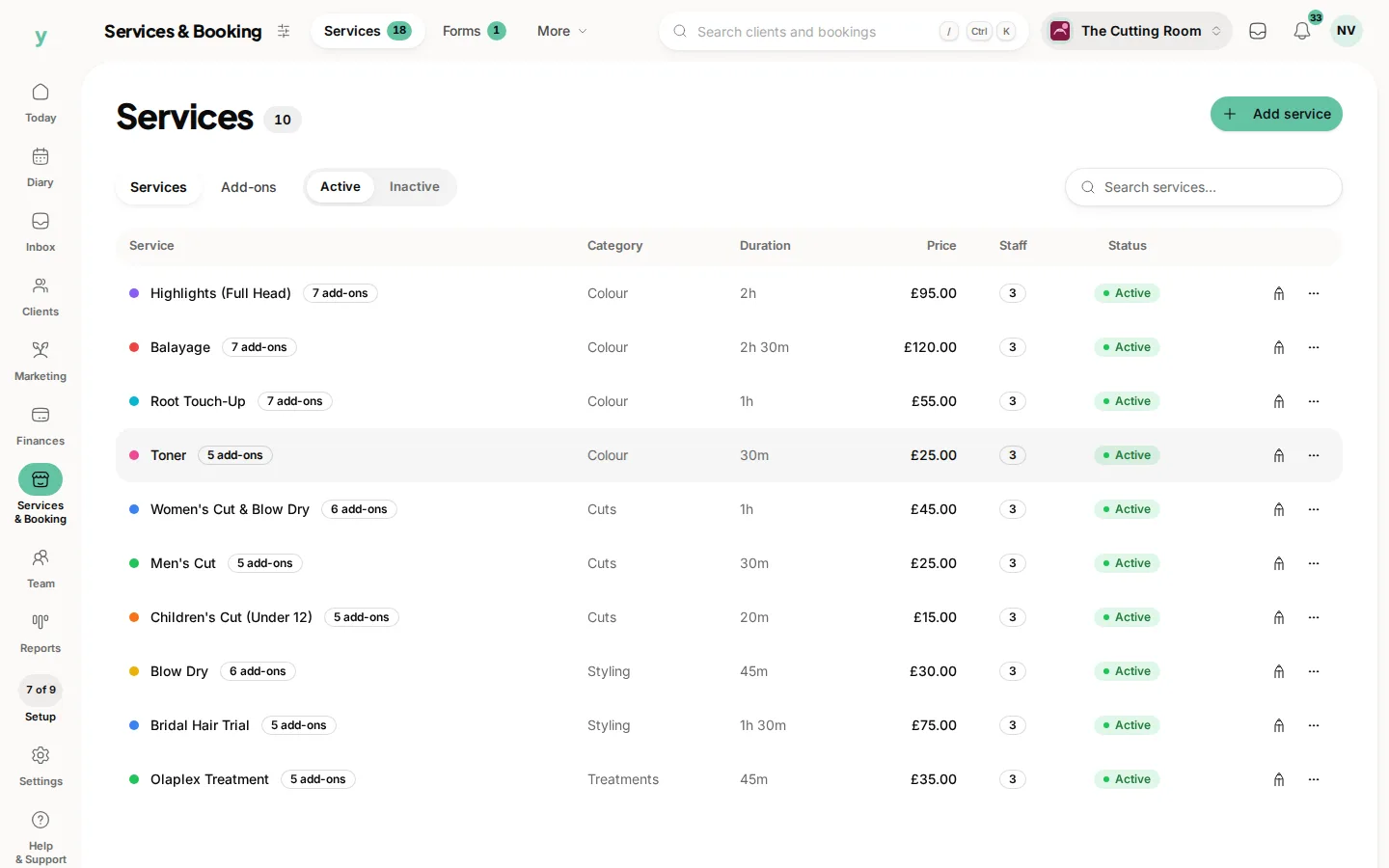
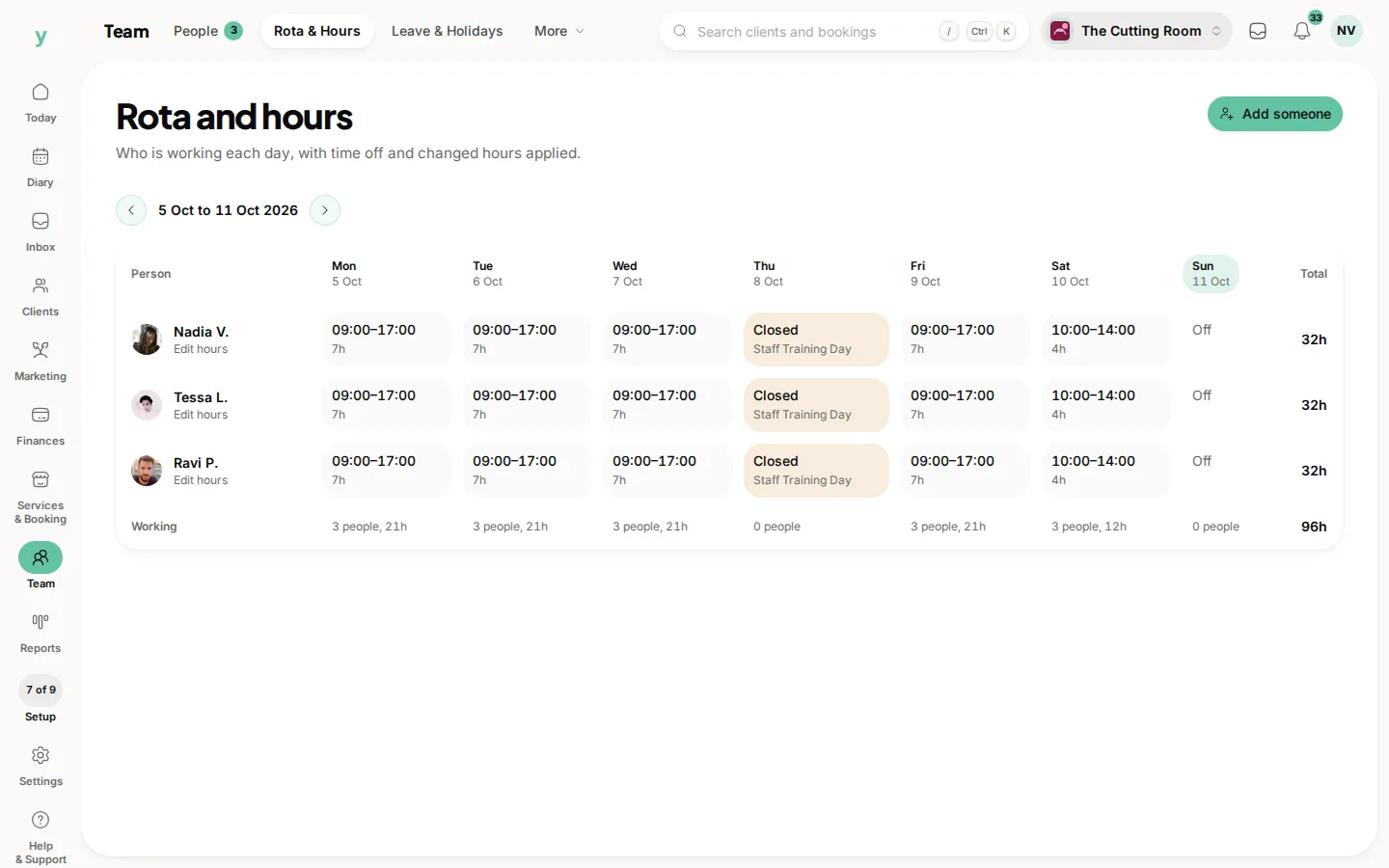
Set their working hours and which services they do. Neither comes from the invitation and until you set them the person cannot be booked online.
Common questions
The invitation never arrived. What now?
Check the email address is right, then check the person's spam folder. You can resend the invitation from their staff record.
Can I add someone without an email address?
You can hold a staff record for the diary, but they cannot log in until an address is added.
Does adding staff cost more?
That depends on your plan. Check Settings, then Plan & Billing, for how yours counts team members.