
Go to Team, then Leave & Holidays. The same screen opens from Team, then Approvals. The heading is Leave and holidays.
The pills along the top are Waiting on you, Approved, Rejected and All. Waiting on you is the queue. A count sits on that pill while something needs an answer.
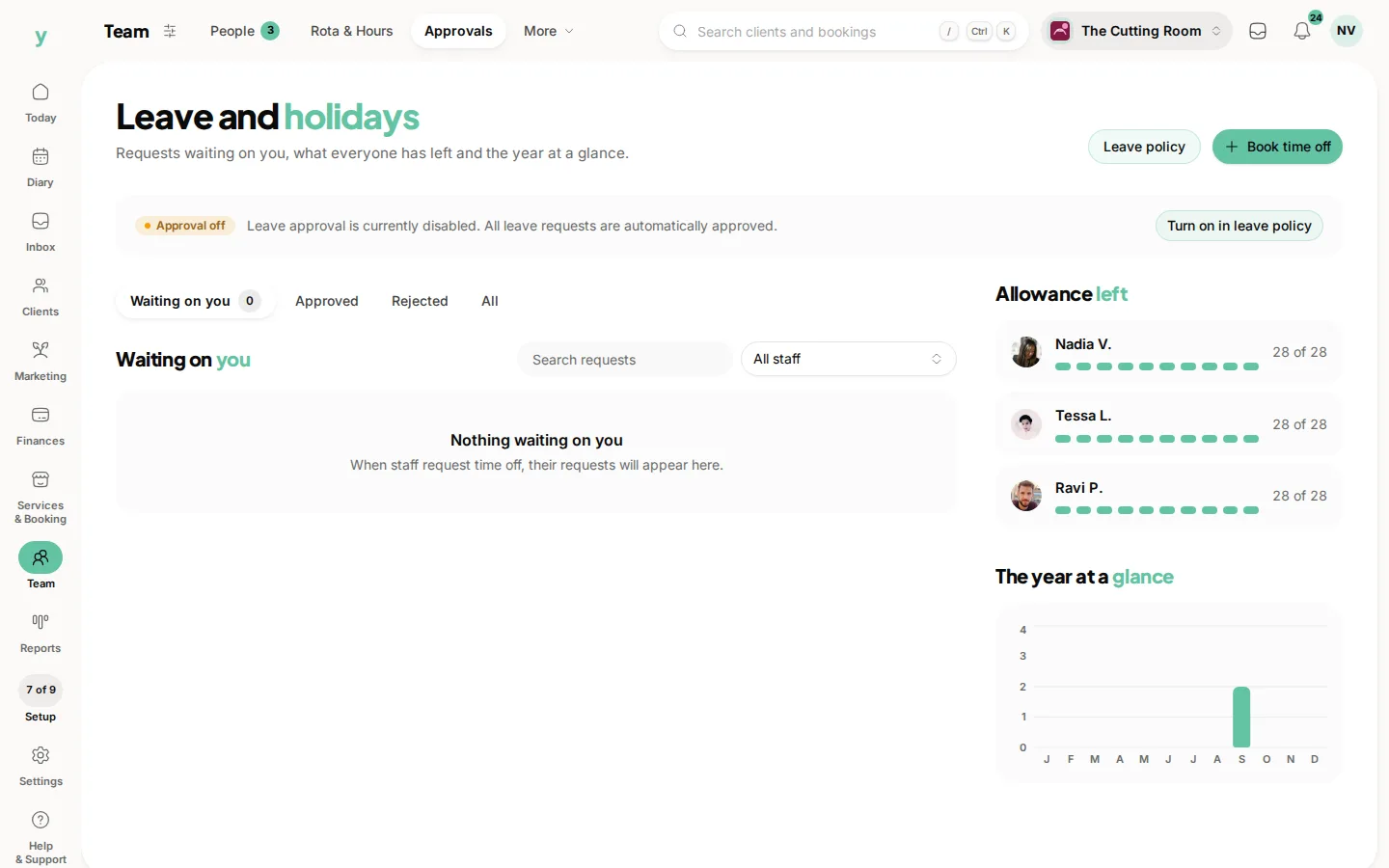
Each waiting request shows the person, whether it is a day off or custom hours and the reason. If it clashes with someone else, the request says so. Check that before you answer.
Approve accepts it and blocks that person out of the diary for those dates. Decline opens Decline leave request. Say why, then Decline leave. A refusal with no reason is the one staff remember.
If the banner says Approval off, nothing is waiting because requests are accepted on their own. Turn approval on under Team, then Policies.
Answer within a few days. People book flights against a yes.
Common questions
Can I approve some of the days and not others?
No. Ask them to send the days that work as a new request, then decline the original.
Does the person get told?
They see the outcome. Booking time off on their behalf tells them too.
What about bookings already with them?
Approving leave does not cancel those bookings. Open the diary and move anything that lands on the days off.